Integration Logic
This article describes the main TronDesigner integration concepts and their key characteristics.
Editor calling modes (Data Modes)
The front-end Editor can be called in two main ways from a technical point of view:
Fixed configuration: when all the required data has been predefined in the call. The user cannot change anything and simply follows the predefined setup choice; the Editor opens directly.
Flexible configuration: when only part of data has been predefined in the call. A Data Selector dialog is displayed for the user to complete product configuration; once finished, the Editor opens.
Required Editor data
To function correctly, the system requires three main categories of data:
Products: Model + product variants (colors, sizes) + optionally quantities.
Print options: Print position codes + print technology codes.
Images: At least one image per variant (ideally with predefined print zone: mockup).
Modes
The behavior of the Editor is determined by the integration settings defined programmatically in the call, in combination with the completeness of the data and the product's availability in the PromoTron database.
Based on these predefined rules and data conditions, the Editor operates in one of three modes: Exact, Partial (Free), Own (Custom).
👉 All behavior logic and mode selections are set programmatically during integration. See in Developer Guide: Calling Modes and Editor Arguments.
Logic Visualization
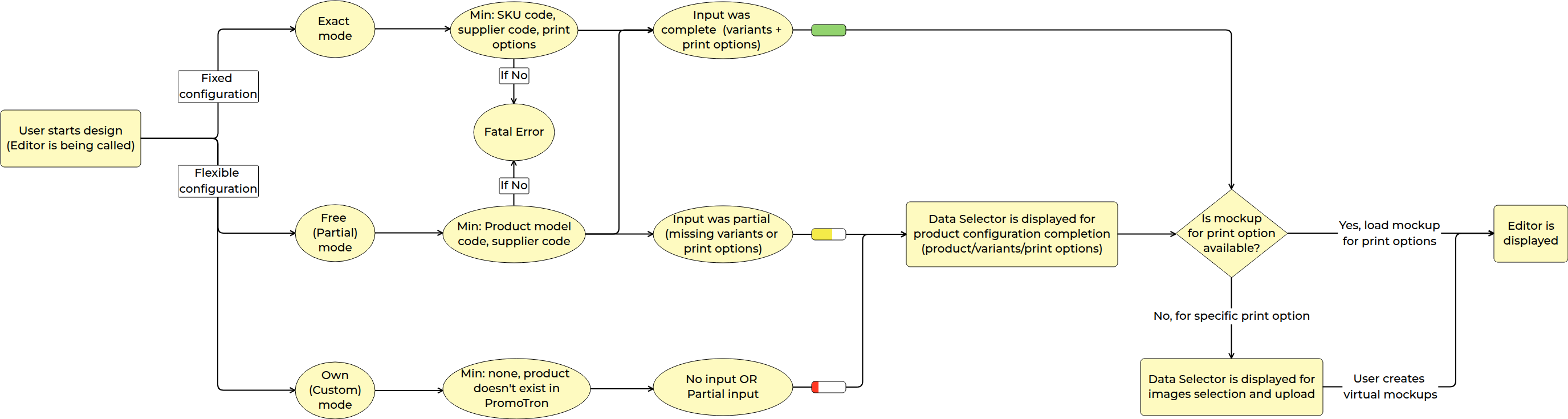
Below is the technical map showing how the system navigates between these modes based on the input data provided in the initial call.
Exact Mode
Exact Mode is used when the complete product and print data was predefined and passed in the call to open the Editor for a product that exists in the PromoTron database.
When to Use
When your system (e.g., webshop) already handles the complete product and print setup — including variants, positions, and technologies — before launching the Editor.
When you want the Editor to strictly follow the setup predefined in your system.
When customers should only focus on the creative design, while all product and print settings stay fixed.
Typically used by webshops with built-in price calculators that determine print details and costs before the design phase.
Integration Notes
Database Match: The product must exist in the PromoTron database (with matching IDs).
Specific Identification: Instead of just a general Model Code, you must pass specific variant IDs (SKUs) and specific codes for print positions and technologies.
Fixed configuration: The Editor operates in a fixed configuration, the user cannot change the product color, size, or print method once the Editor is open.
Data Selector: The Data Selector dialog is skipped entirely, except when a mockup is missing, in that case, the user is prompted to upload or generate one.
Design Ready: The Editor opens directly with the predefined product and print setup, ready for the user to start designing.
Validation: Any missing or invalid data will trigger a fatal error instead of allowing the user to correct it manually.
Free Mode (Partial Mode)
Free Mode is the default and flexible calling mode. It is used when only partial product data is provided in the call, allowing the user to complete the configuration within the interface. This mode requires the product to exist in the PromoTron database.
When to Use
When your system (e.g., webshop, ERP, CRM) provides the product model but does not include the full print setup — variants, positions, or technologies — in the Editor call.
When the product and print setup can be completed directly in TronDesigner.
When users complete the configuration (such as variants, print positions, technologies, or images) by selecting from available options in the Data Selector dialog before proceeding to the Editor for design.
Typically used by companies without user-facing print configuration or integrated pricing systems.
Primarily intended to be used by internal staff of the integrating company.
Recommendation: This mode is optimal and recommended for most integrations.
Integration Notes
Minimum Requirements: At a minimum, only the supplier code and product model code must be passed in the call.
Flexible Configuration: Unlike Exact Mode, all parameters remain editable. Even if data is pre-selected, the user can return to the Data Selector from within the Editor to modify their choices (e.g., swapping a product color).
Data Selector: The Data Selector dialog appears automatically, skipping steps that are already fully defined and starting from the first missing detail. (Note: The display of the Data Selector can be explicitly overridden in the configuration).
Validation: The Data Selector only displays valid options (variants and print methods) retrieved from the PromoTron database for that specific model.
Design Ready: Once the user completes the required selections and a mockup image is confirmed, the Editor opens for the design phase.
Technical Keyword: Free Mode is referred to as partial in the JSON configuration.
Own Mode (Custom Mode)
Custom Mode is used when a product does not exist in the PromoTron database. In this mode, the developer must configure the call to pass the product definition, or the user must fill in all required data manually in the Data Selector.
When to Use
When your system (e.g., webshop, ERP, CRM) includes unique, third-party, or custom products not listed in the PromoTron database.
When you want to enable designing for unlisted or special items (e.g., custom-made merchandise).
When product and print data are provided directly in the call or entered manually by the user in the Data Selector dialog.
Typically used by internal teams of distributors or suppliers.
Integration Notes
Independence: No predefined product reference (model code or SKU) is required.
Flexible configuration: All data must be passed within the call or entered manually by the user. If the call contains limited data, the Data Selector will guide the user through the missing steps (defining the product, print setup, and uploading mockups).
Data Source: All product and print data are generated from user input or the JSON call, rather than being retrieved from the PromoTron database.
Technical Requirement: Because of the complexity of defining a product from scratch, this mode requires the JS Builder or JSON method (it cannot be fully implemented via simple HTML attributes). See more in the Developer Guide.
Design Ready: After all required setup steps are completed, the Editor opens for design.
Technical Keyword: Custom Mode is referred to as own in the JSON configuration.
Data Completeness & Workflow Impact
The following table visualizes the logic explained earlier. It shows how the data you pass directly affects the user’s journey — specifically where the process is fully automated and where the user must step in (either using manual tools or AI-assisted features) to complete the setup.
High-quality data creates a "One-Click" experience, while missing data (even in Exact mode) triggers manual setup steps via the Data Selector.
Note on Data Levels: "Limited data" does not mean limited features. All core functions —designing, proofing, and generating print data — remain fully available. Providing complete data simply shifts the effort from the user to the system: it replaces manual setup with automation and high visual accuracy, unlocking the Editor’s "one-click" potential.
Advanced Customization
Mode Configuration and Validation Logic
While the Editor’s behavior is typically determined by the volume of data passed in the call, the integrating company can explicitly set the mode to ensure a specific workflow, regardless of how much data is predefined.
This manual override allows for tailored user experiences. For example, a company may choose to force Free Mode even when a complete setup is passed, specifically to allow the user to modify variants or print methods if they change their mind.
Validation Rules
Regardless of the chosen configuration, the data provided must meet the minimum requirements for that specific mode. If mandatory parameters are missing for the selected mode (e.g., missing specific variant IDs in Exact Mode), the system will trigger a fatal error and the Editor will not launch.
Recommended Approach
For most cases, the best way to control the Editor is by the amount of data you send.
If you want the user to choose their own options, send only the basic product info (Free Mode).
If you want everything locked, send the full configuration (Exact Mode).
Setting the mode manually in your code should only be done if you need to "force" a specific behavior. For example:
To restrict a user: You send full data and force "Exact" so they can’t change anything.
To give more freedom: You send full data but force "Free" so the user can still go back and swap colors or print methods if they want to.