Creator User Guide
Step-by-step how to use the mockup creator and a video tutorial
Introduction
The Creator is used to prepare visual mockups and define printable areas for products before they are used in the TronDesigner Editor.
In the Creator, you upload or select product images, define real-world dimensions, and specify the exact areas where printing is allowed. These settings ensure that designs created later in the Editor are accurate, correctly scaled, and compliant with print limits.
This guide is intended for suppliers’ internal team members who prepare product data and mockups for use in the TronDesigner Editor.
Video tutorial
Step-by-step guide
In the TronDesigner Admin Portal sidebar, open Products and select a product that does not have mockups.
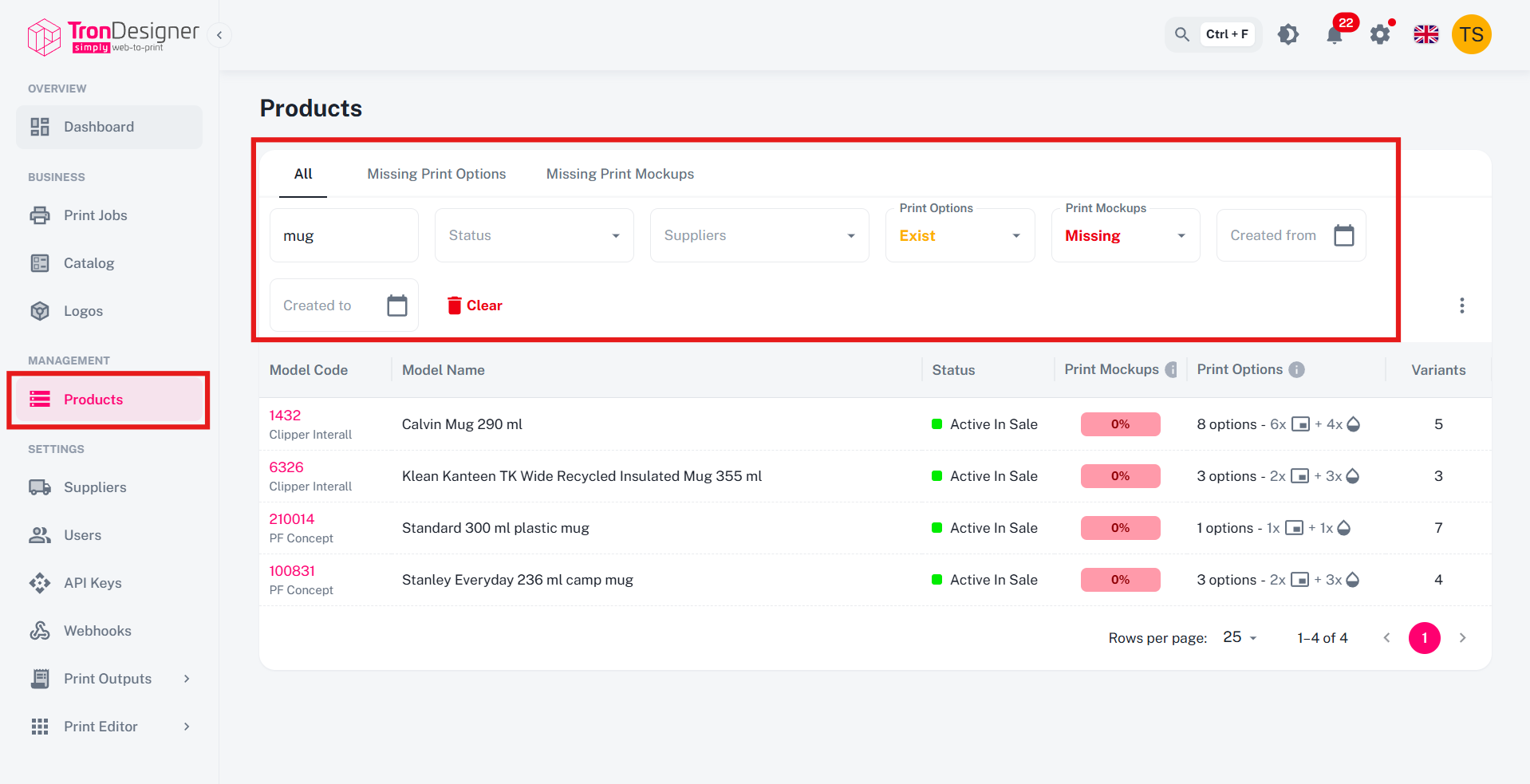
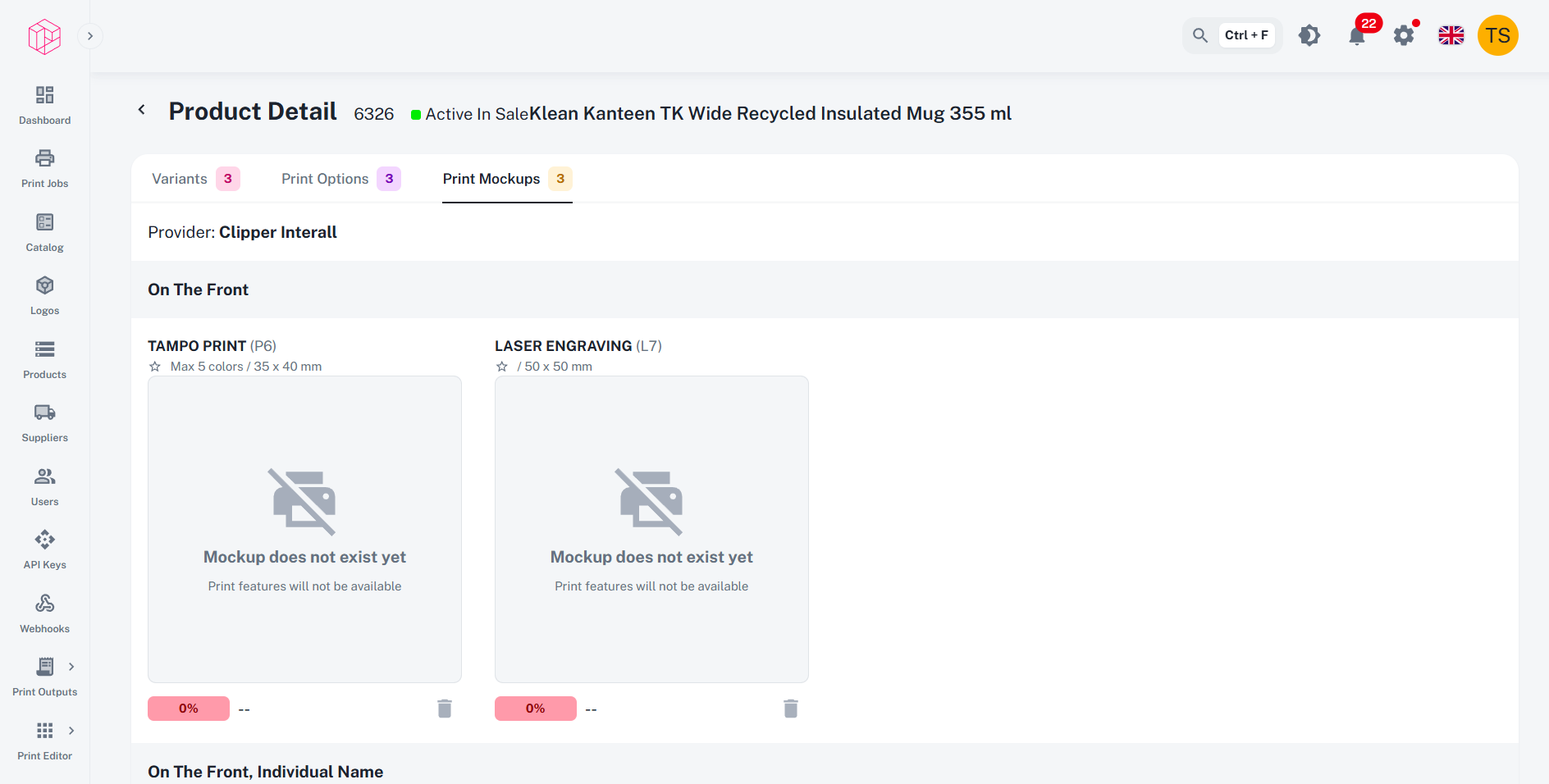
In the product details, under Print Mockups, we can see that none of the print options have mockups yet, so we click on the first placeholder.
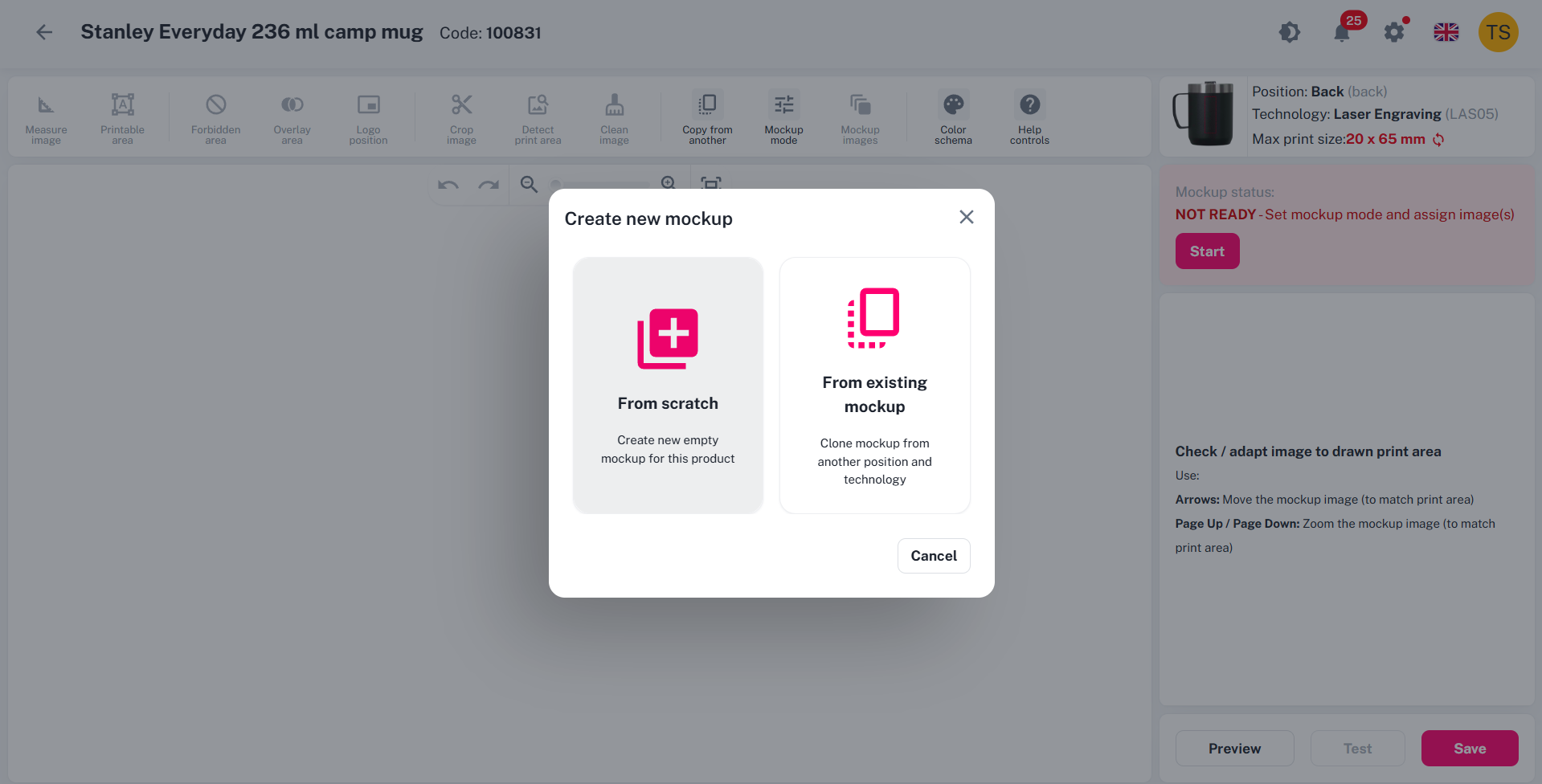
We create a mockup from scratch.
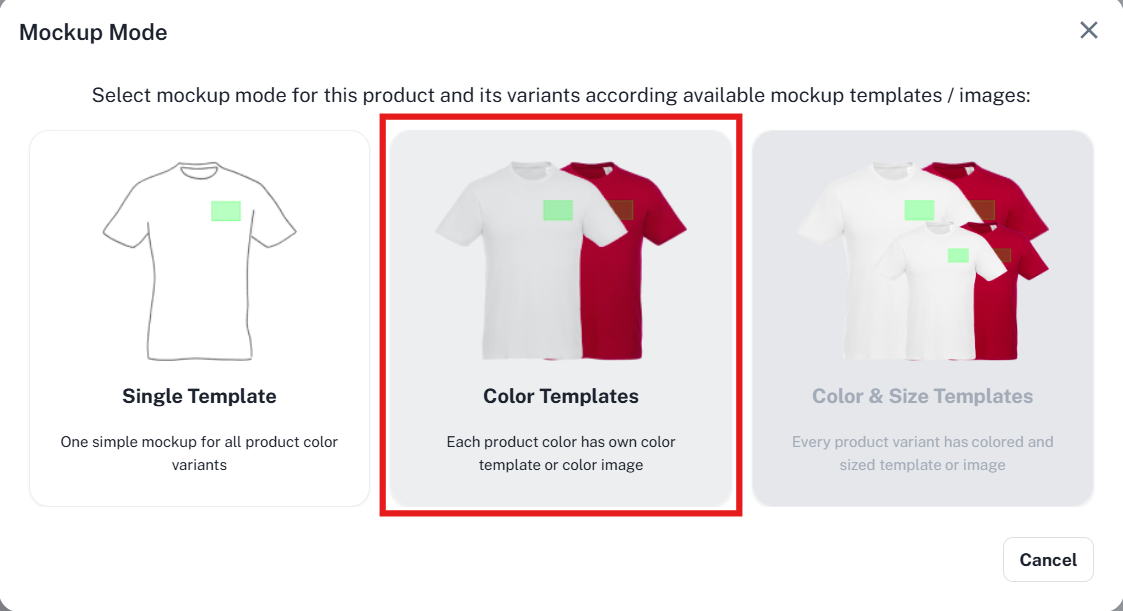
We choose the Color Templates as the mockup mode. This allows switching between colors later in the Editor.
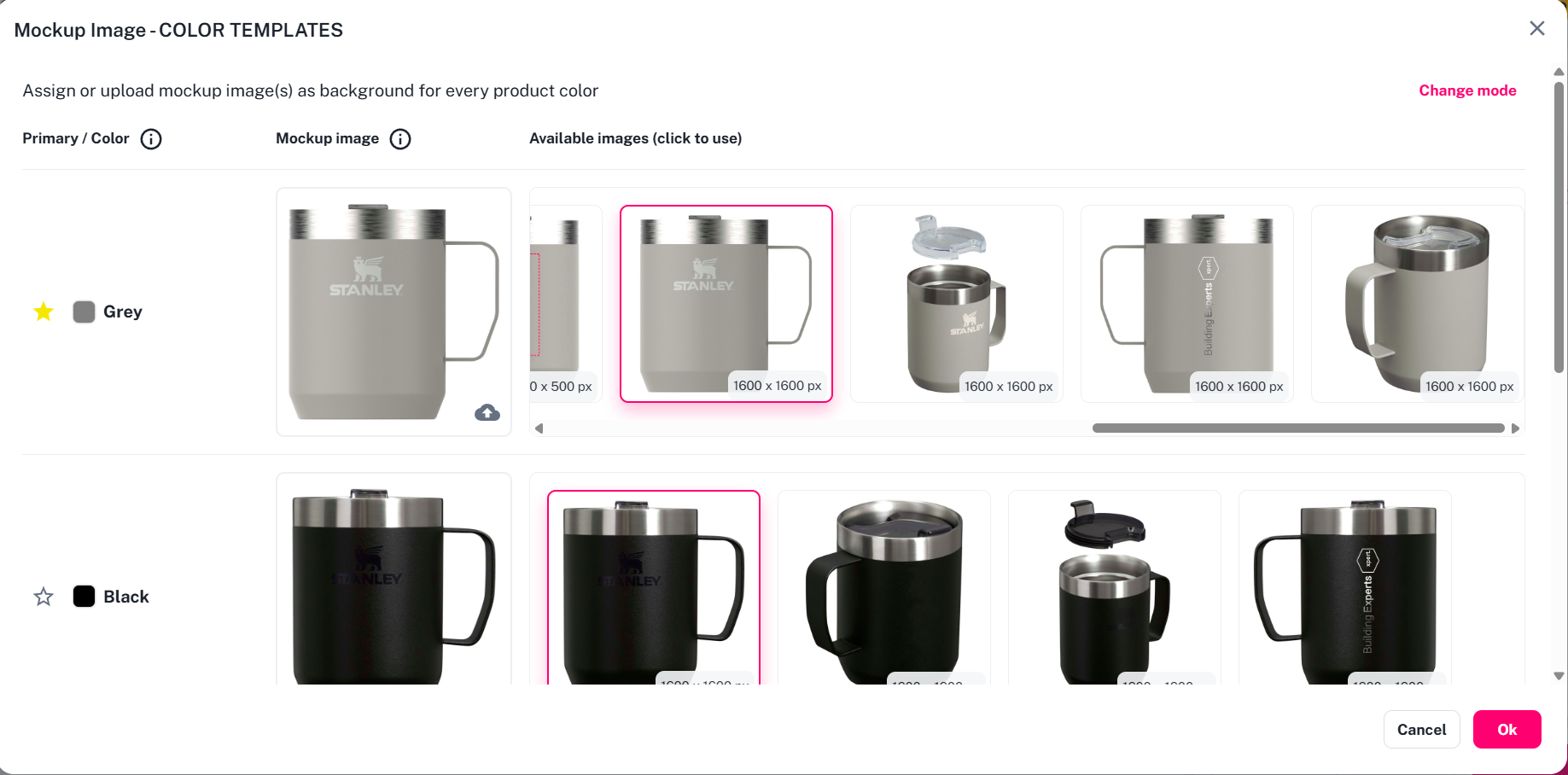
In the next step, we select pictures for each color. The pictures should look identical and show the product from the same angle, only in different colors.
If you select pictures with painted printing areas, keep in mind that these painted areas are part of the image and will be displayed later in the visualizations.
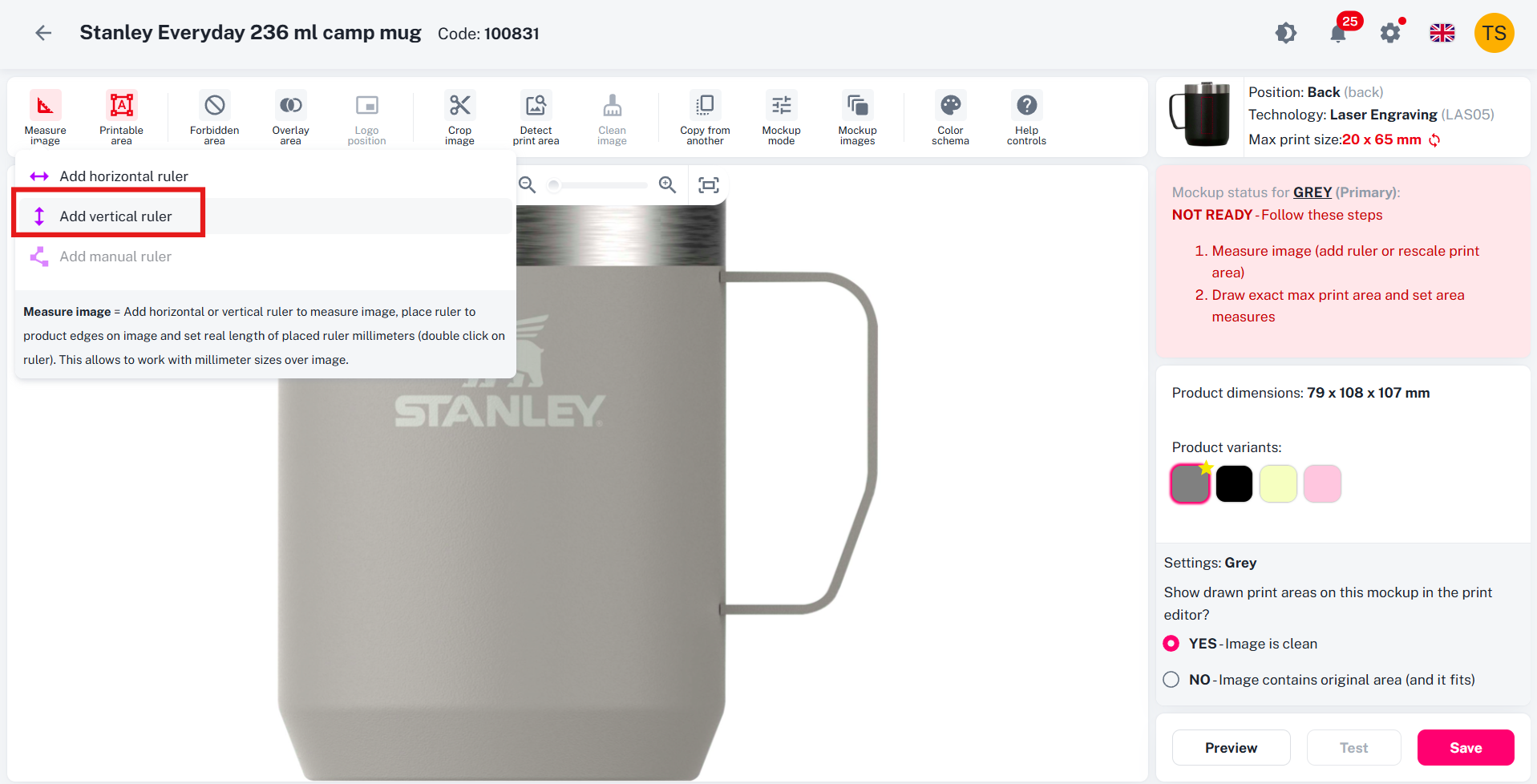
Now, in the Creator, we set the real dimensions and define the printable area.
We can start defining the printable area by clicking Add rectangle, since the in the example in the top right corner we see an area of a rectangular shape.
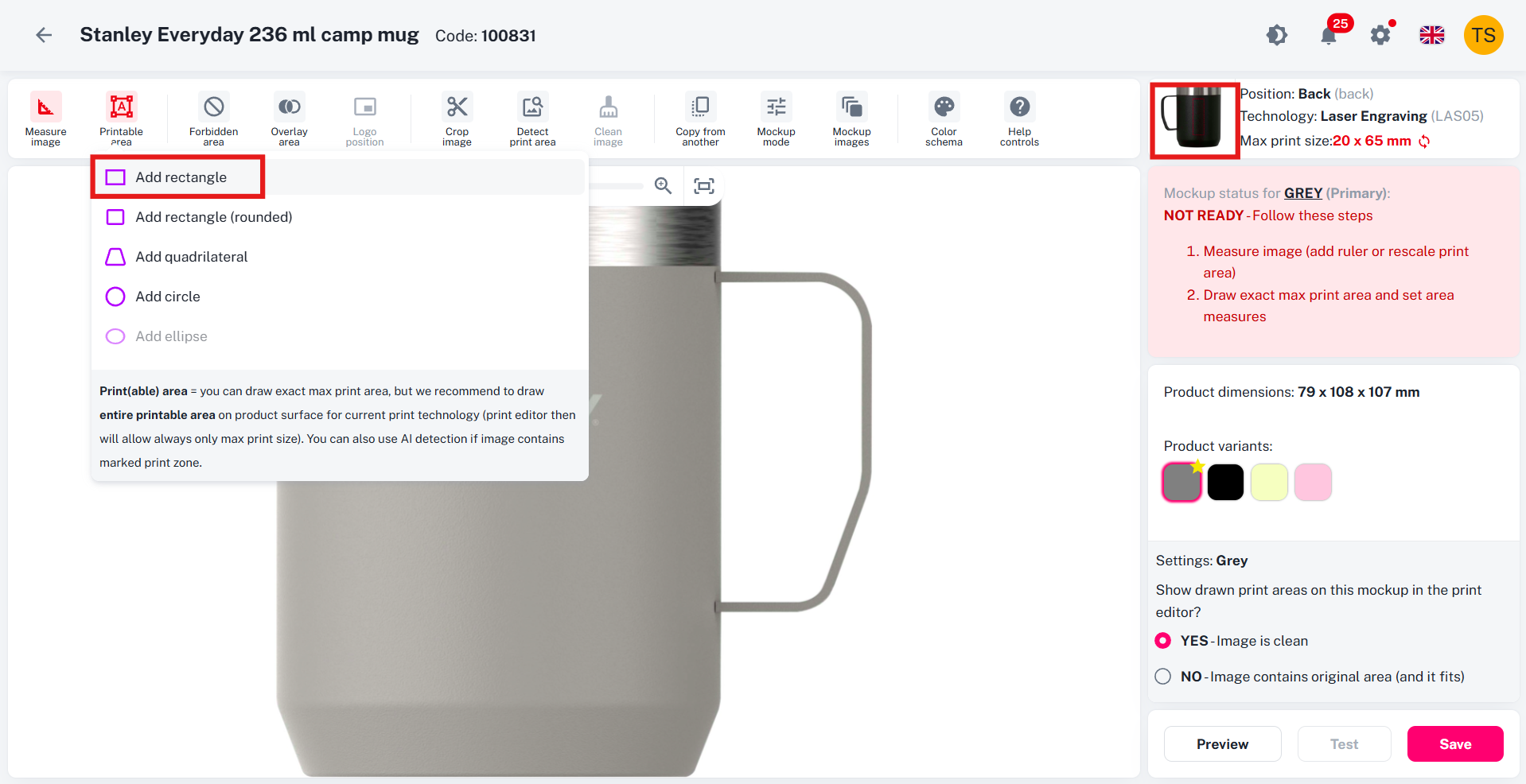
A rectangle appears with the maximum print size.
We stretch the rectangle while holding the Shift key to keep the aspect ratio, until it roughly corresponds with the printable area.
We also enable Image is clean in the bottom-left corner.
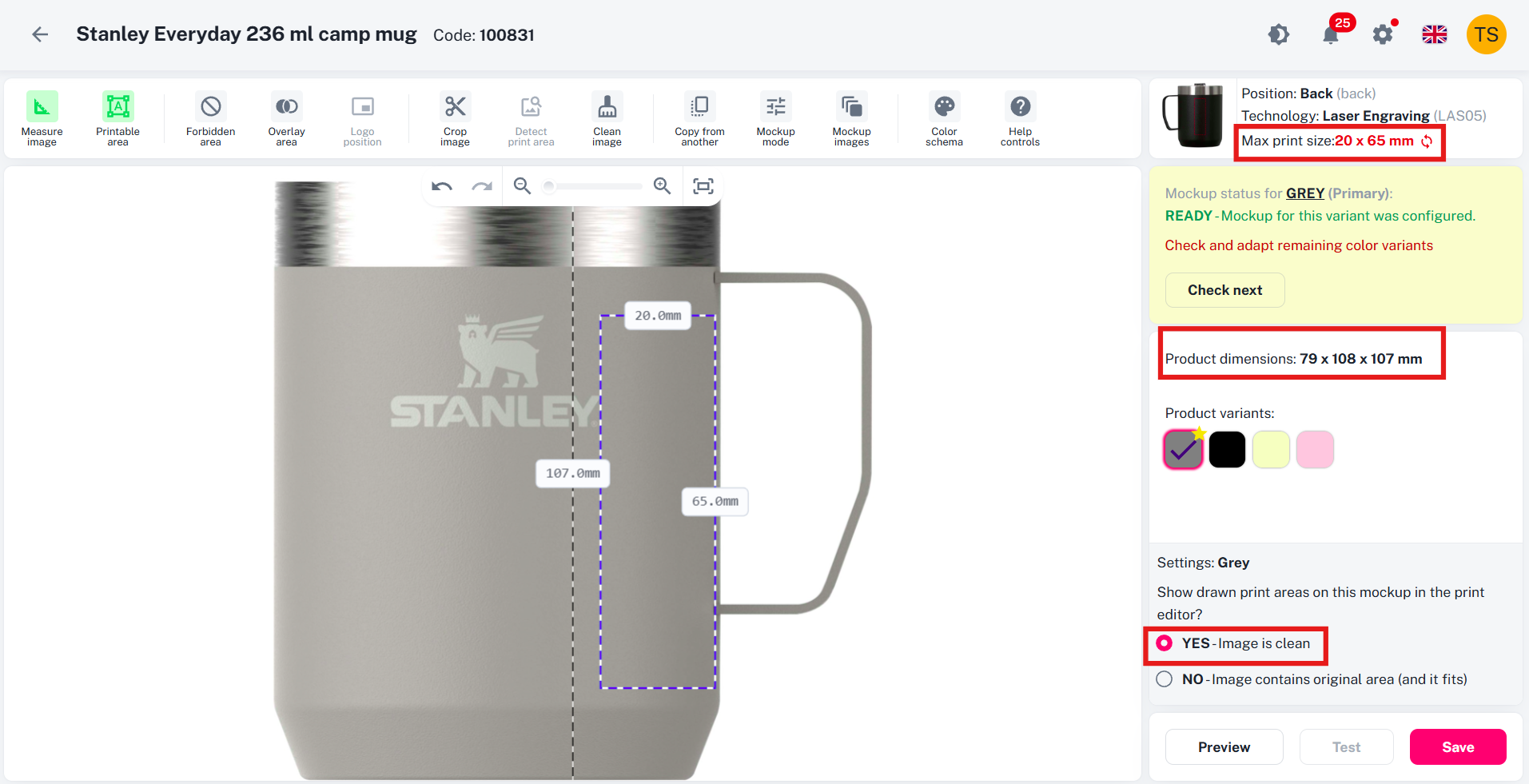
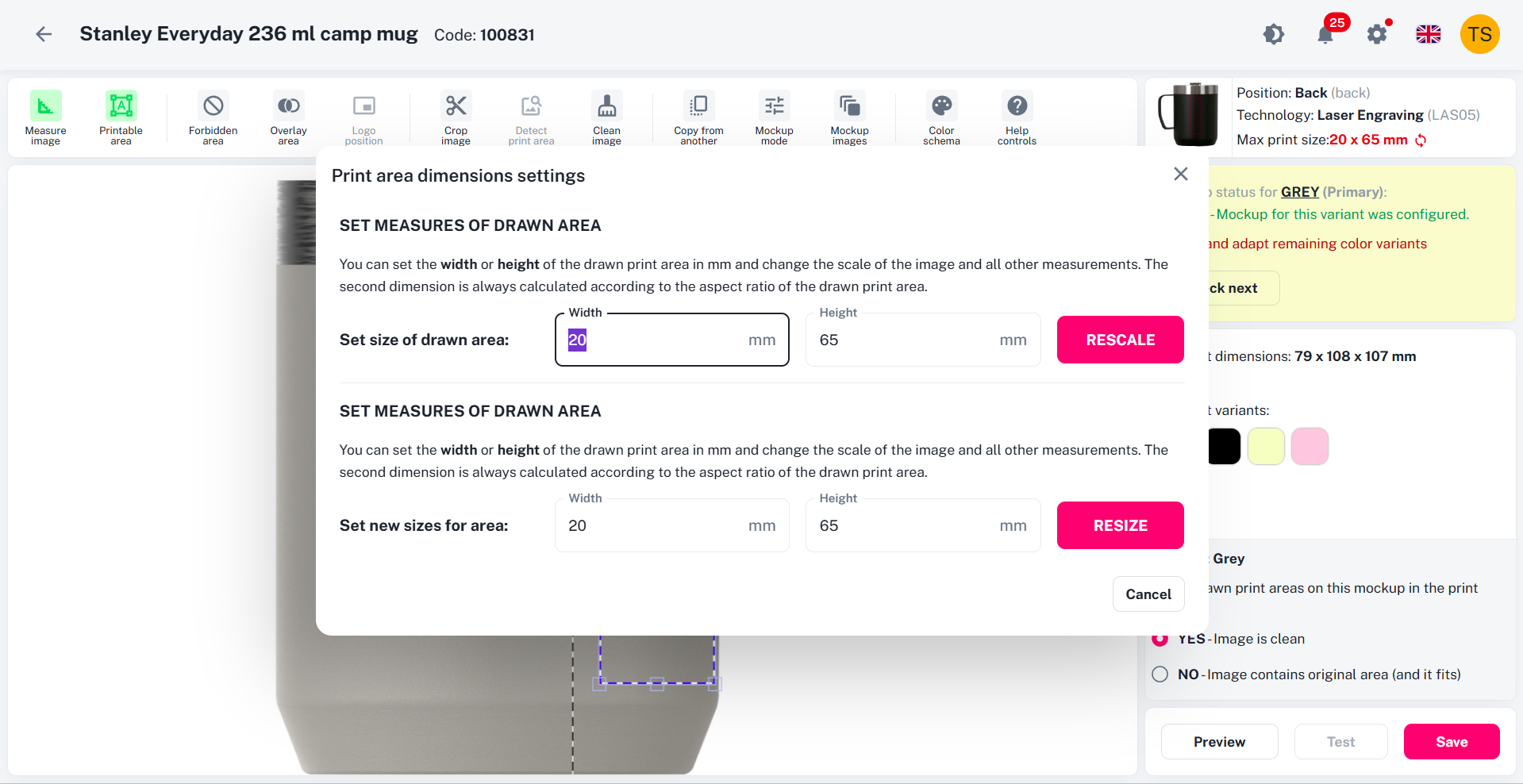
By double-clicking on the area you can resize or rescale it.
You see the green message: “Ready – Mockup for this variant was configured.” You click Check next to review the remaining colors.
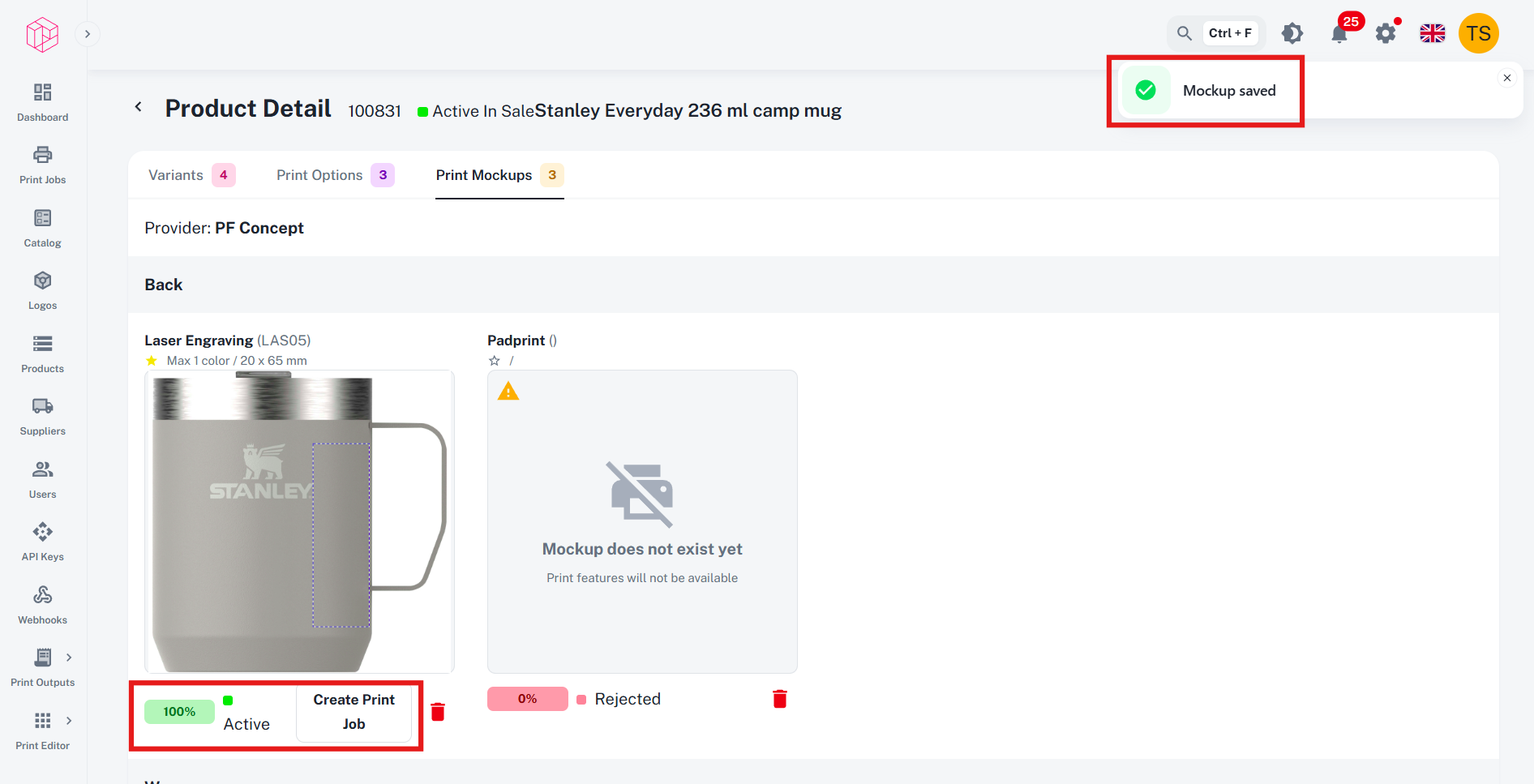
After approving the last color, you see that all variants are ready, and you click Save in the bottom-left corner.
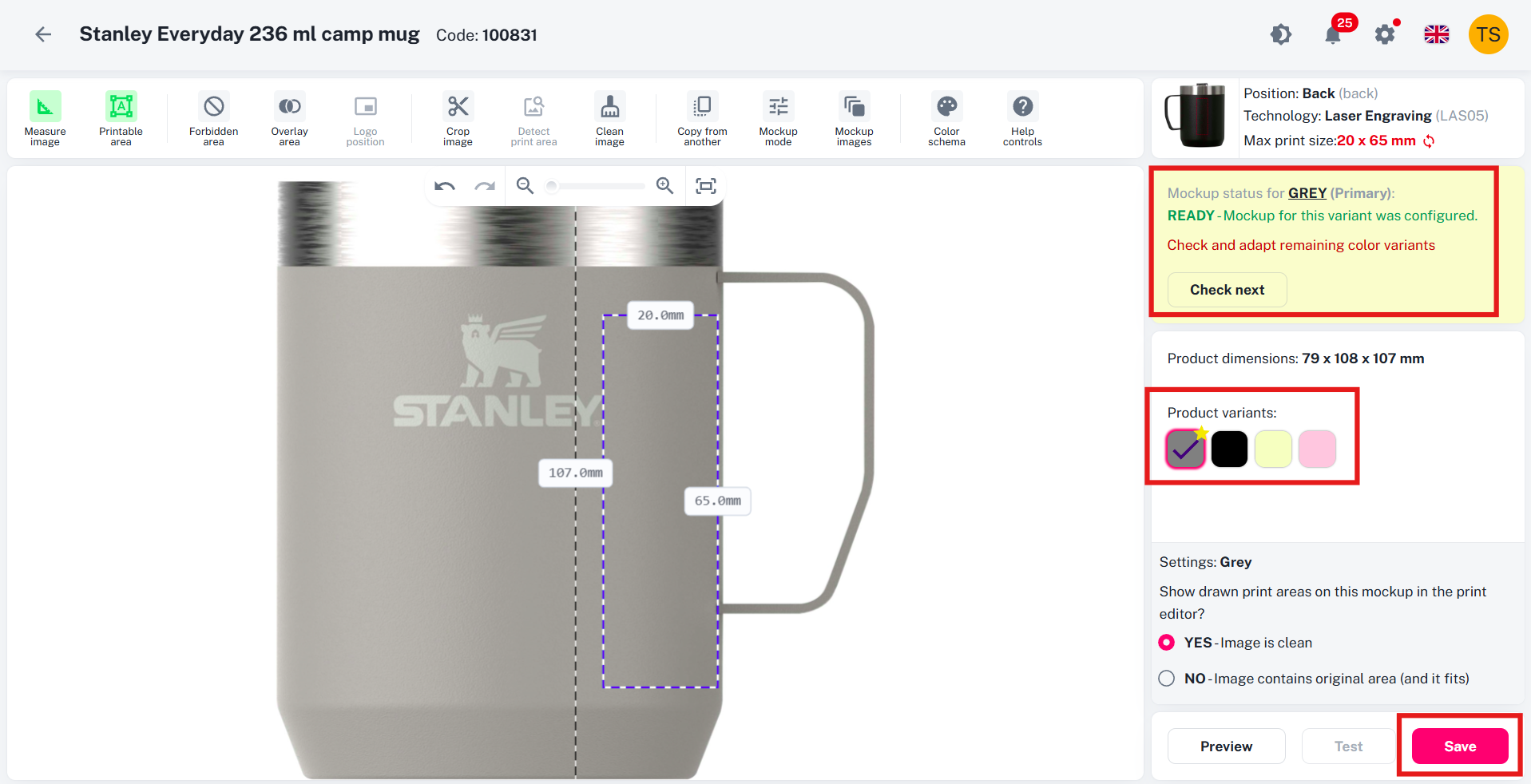
Now the mockup is ready for this print option, and the Create print job button becomes active.