How It Looks
This article provides an overview of how the TronDesigner application looks, with screenshots of its main parts and brief descriptions of their purpose.
Data Selector
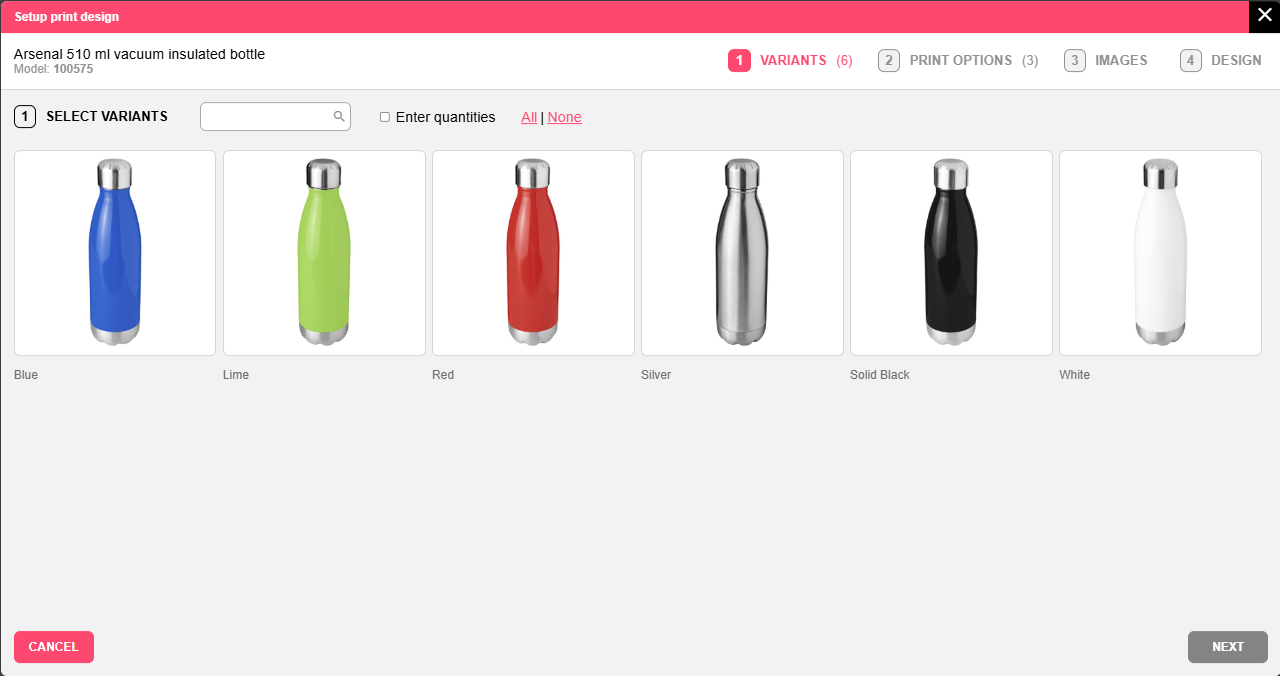
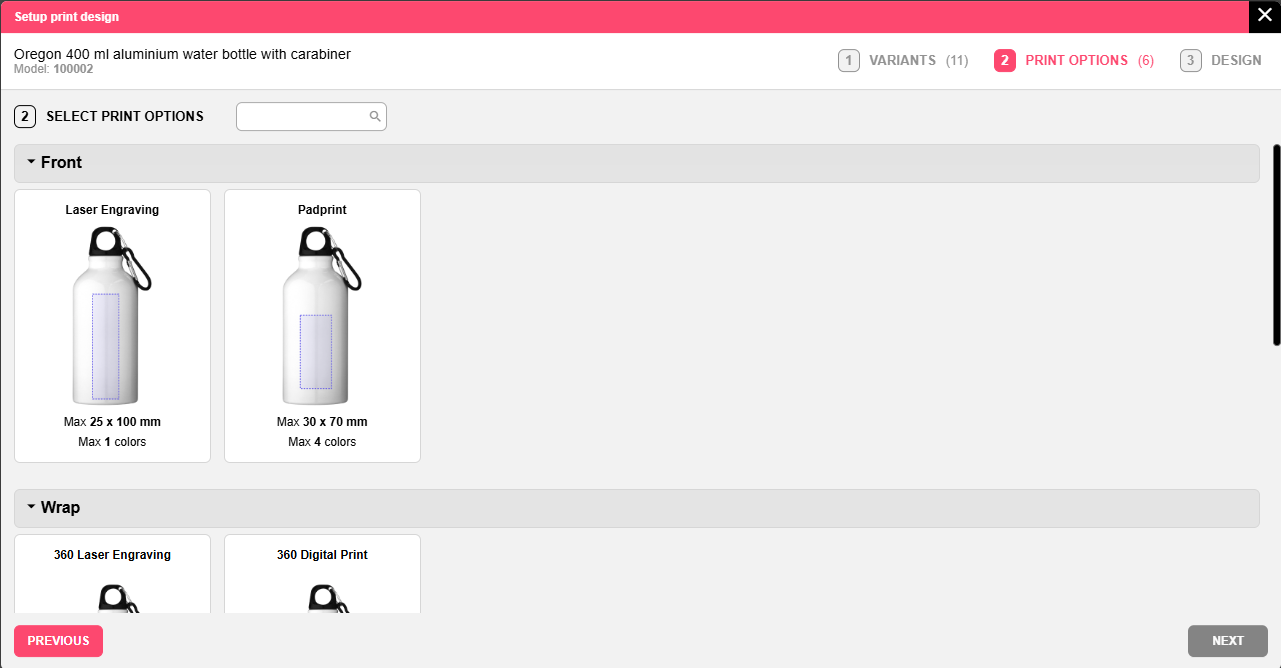
This is a dialog window where users can define the product, variants, print options and mockups, depending on what is missing and what was the Editor calling mode, after configuring this the Editor itself is displayed for designing.
Editor
This is the Editor, where the main magic happens, e.g. designing and working with logo, proof generating.
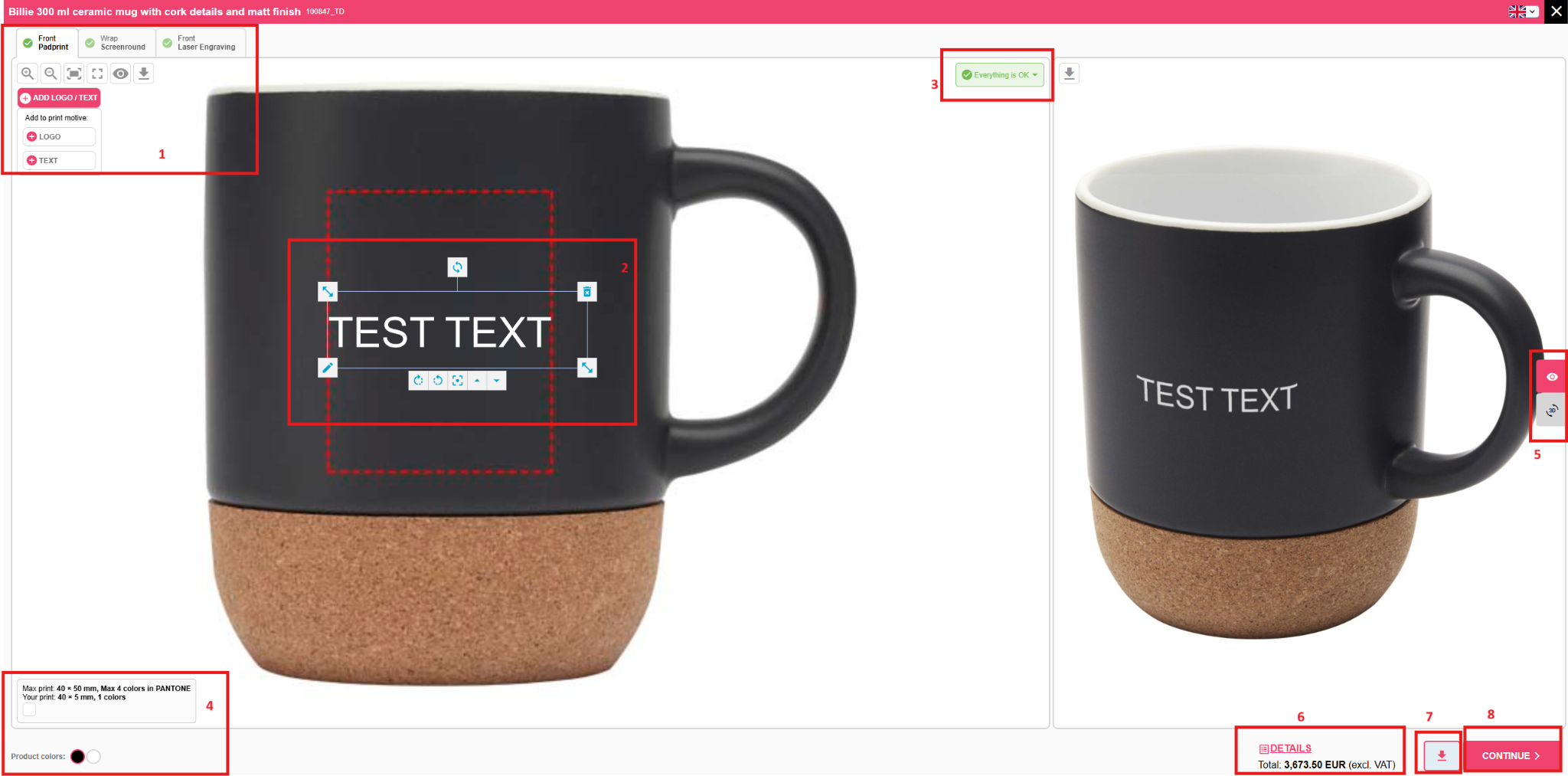
Legend:
Print options tabs, icons to zoom in/out, focus on the logo/product, hide the printing area or download the visualisation, upload text/logos to design + Logo gallery*
Logo tool: centering the logo to the area, colors mapping, background removal, logo crop, edit, adapt, AI vectorization
Errors/Warning/Success info about text/logo positioning
Display printing details and Color Switch* (optional if multiple color selected and if different product color images available)
Display 2D/3D visualisations if available*
Real-time calculator* (optional if integrated to our TronCalculator or to your webshop/ERP). On click a pop-up with detailed calculated data is displayed.
Create and download e-proof PDF
Display “Final Verification” pop-up with all the data to be checked and confirmed and the print job to be created and saved
*Elements (Logo gallery, color switch, 2D/3D visualisation, calculator) are optional.
The rest is mandatory.
Admin Portal
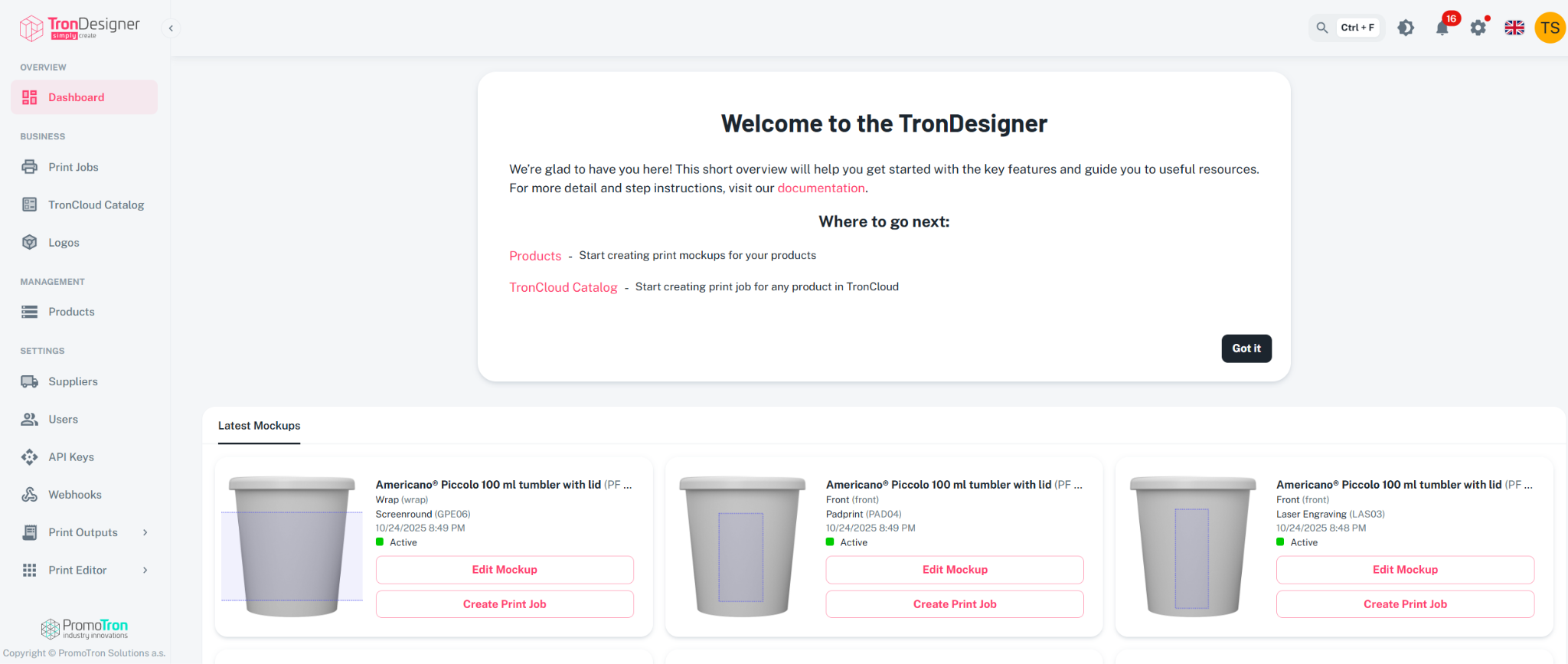
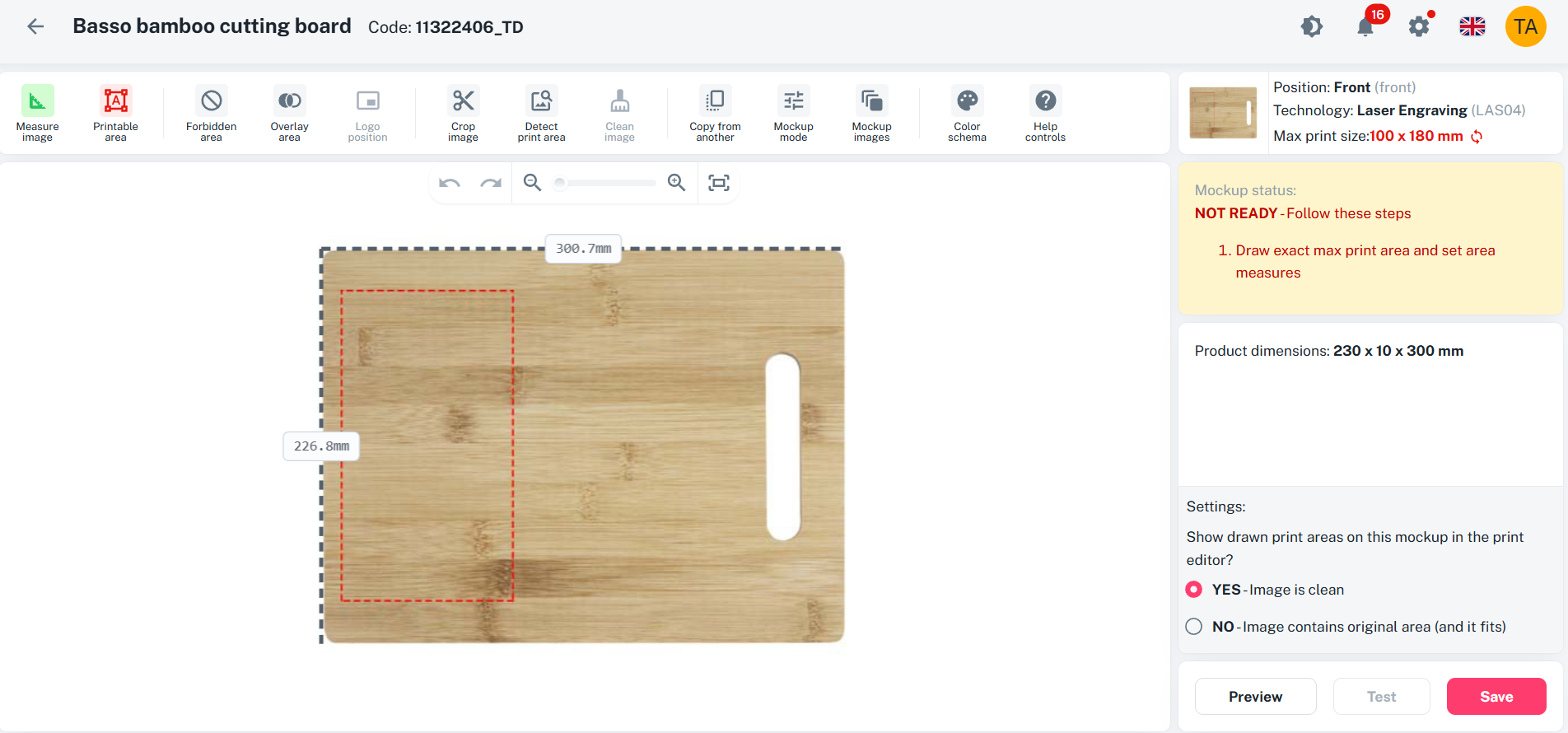
Main dashboard and Mockup creator:
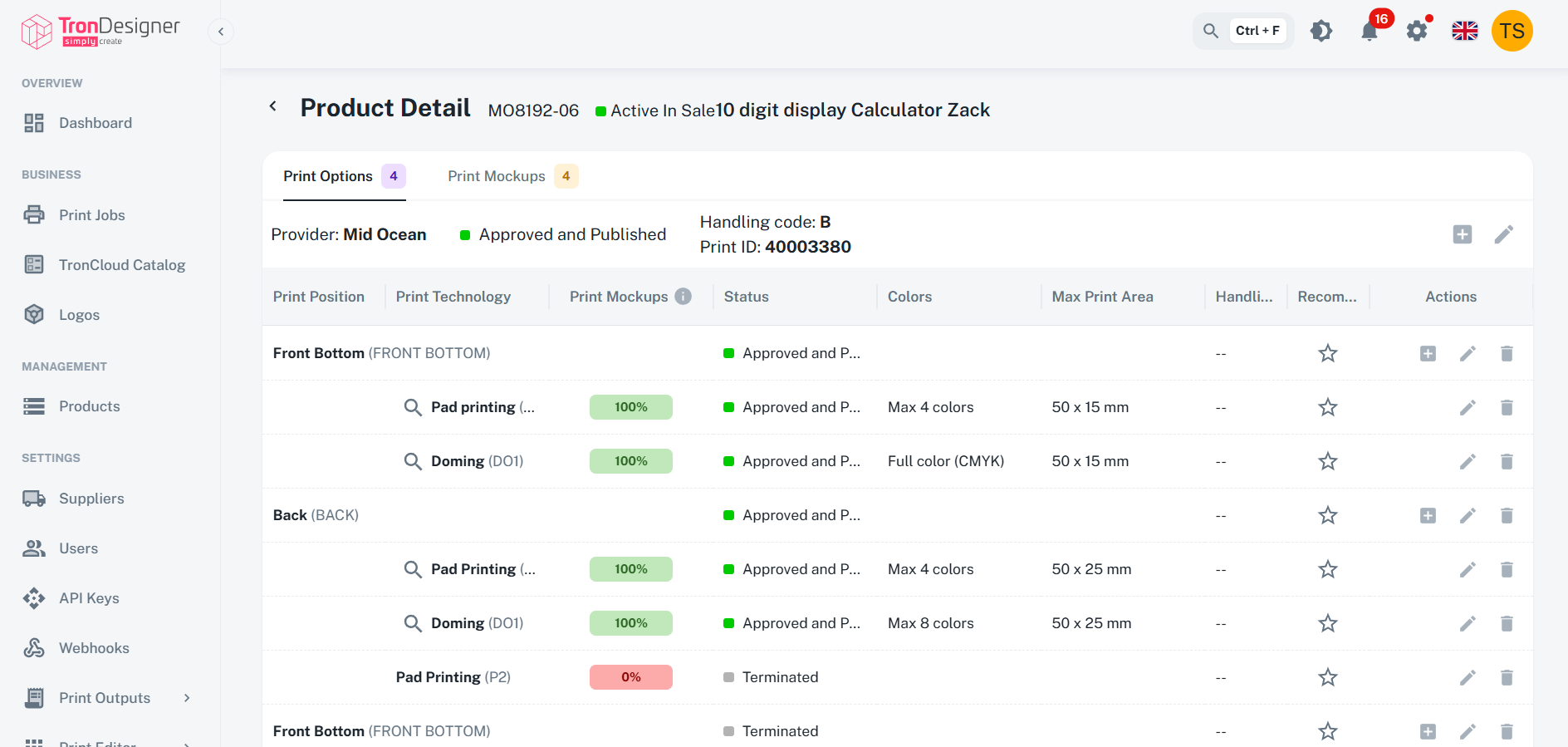
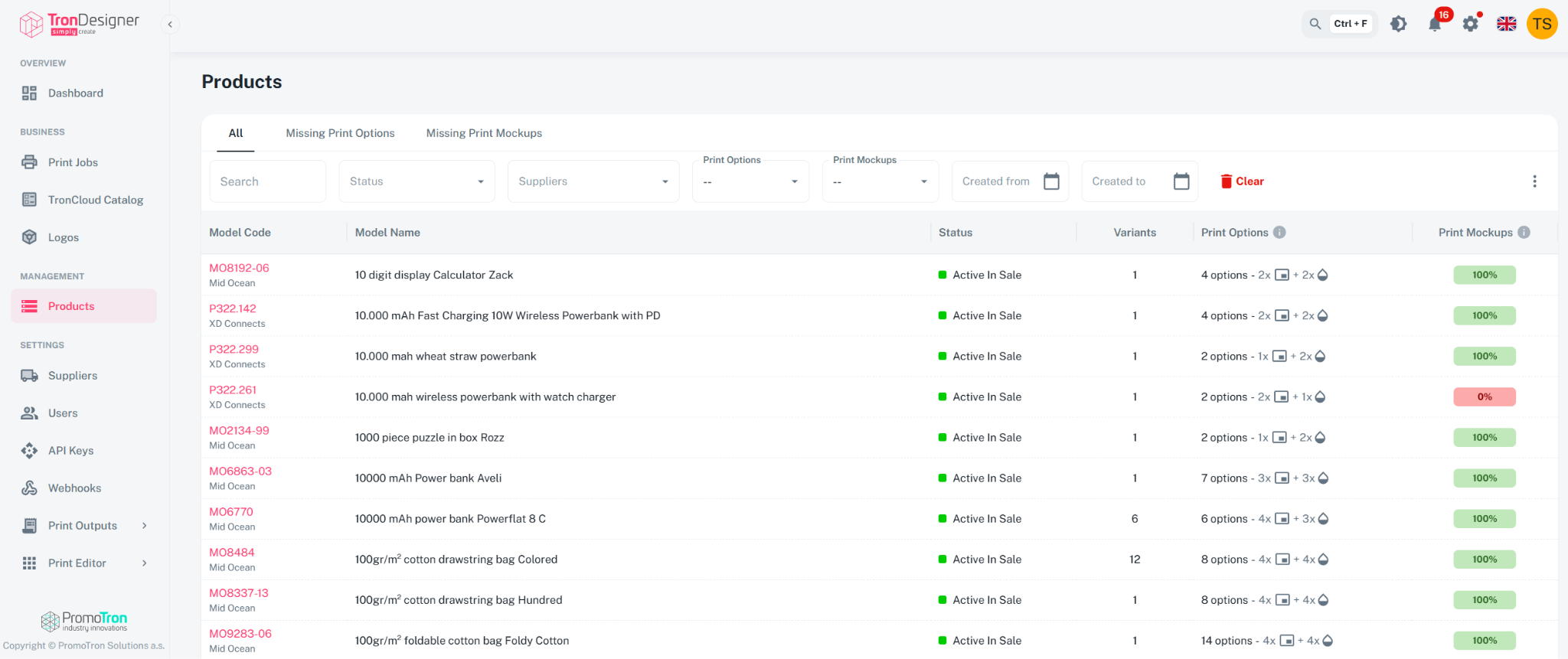
Product detail and Products management:
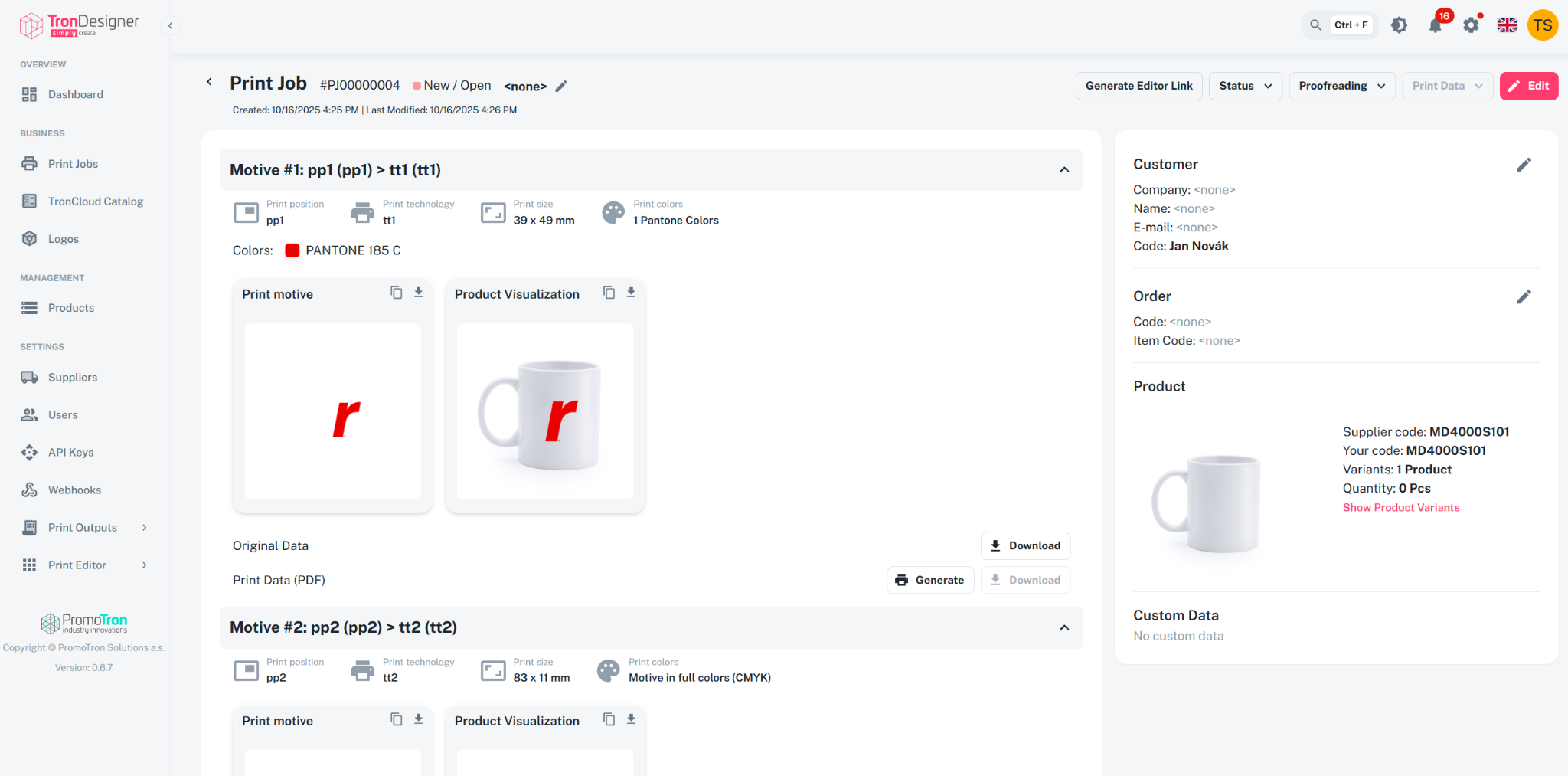
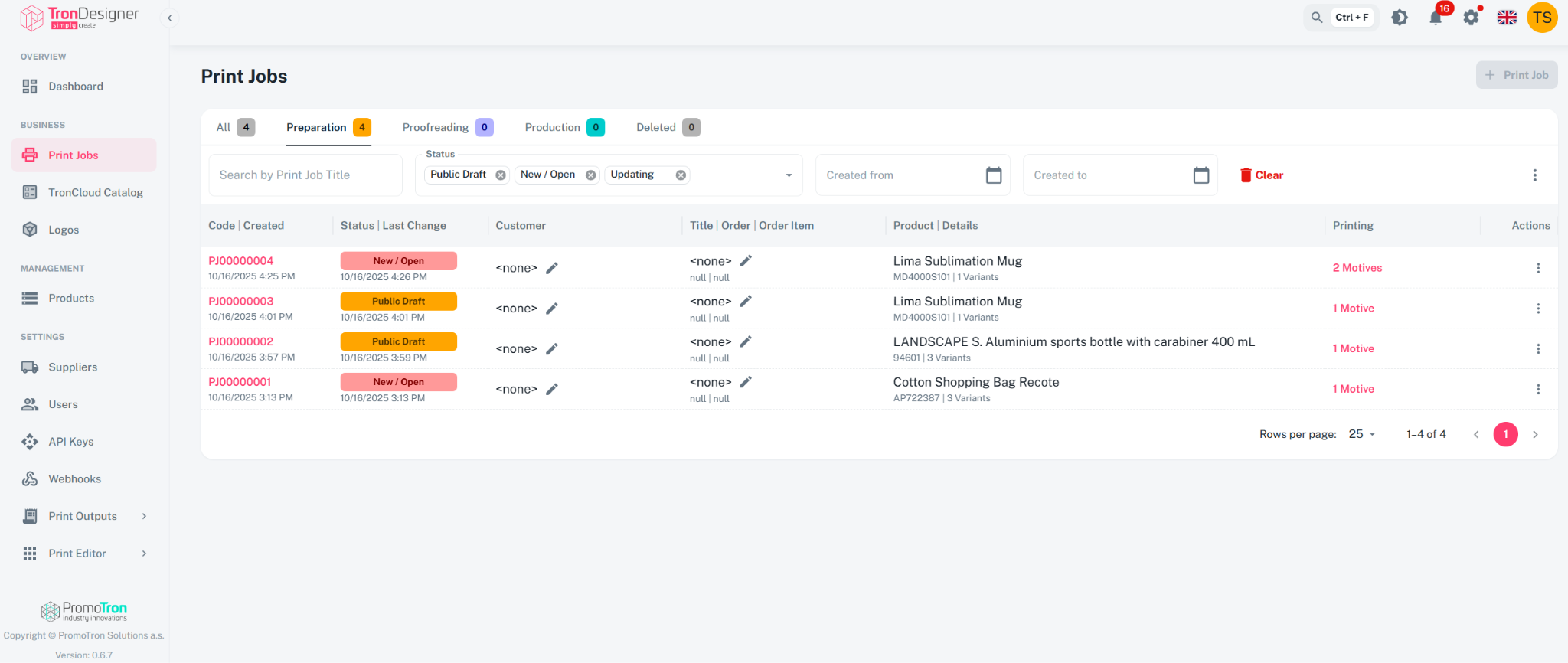
Print Job detail and Print Jobs management: