Editor User Guide
Step-by-step guide and video tutorial for using the TronDesigner Editor.
Introduction
The TronDesigner Editor allows you to prepare print designs for products by placing logos and text into defined print areas. The result is a print job.
This guide is for end users as well as internal team members like operators, sales - whoever is going to prepare a print job.
Video tutorial
Step-by-step guide
Editor Overview (UI Orientation)
Please refer to the page How Editor looks to see the layout and main elements.
Creating a Print Job
Open the product in the Editor for selected variants and print options
Design the print
Confirm all designs
Create and download a proofreading (optional)
Create and save the print job
Working with the logo
When you open a product in the Editor, it opens to the first print option.
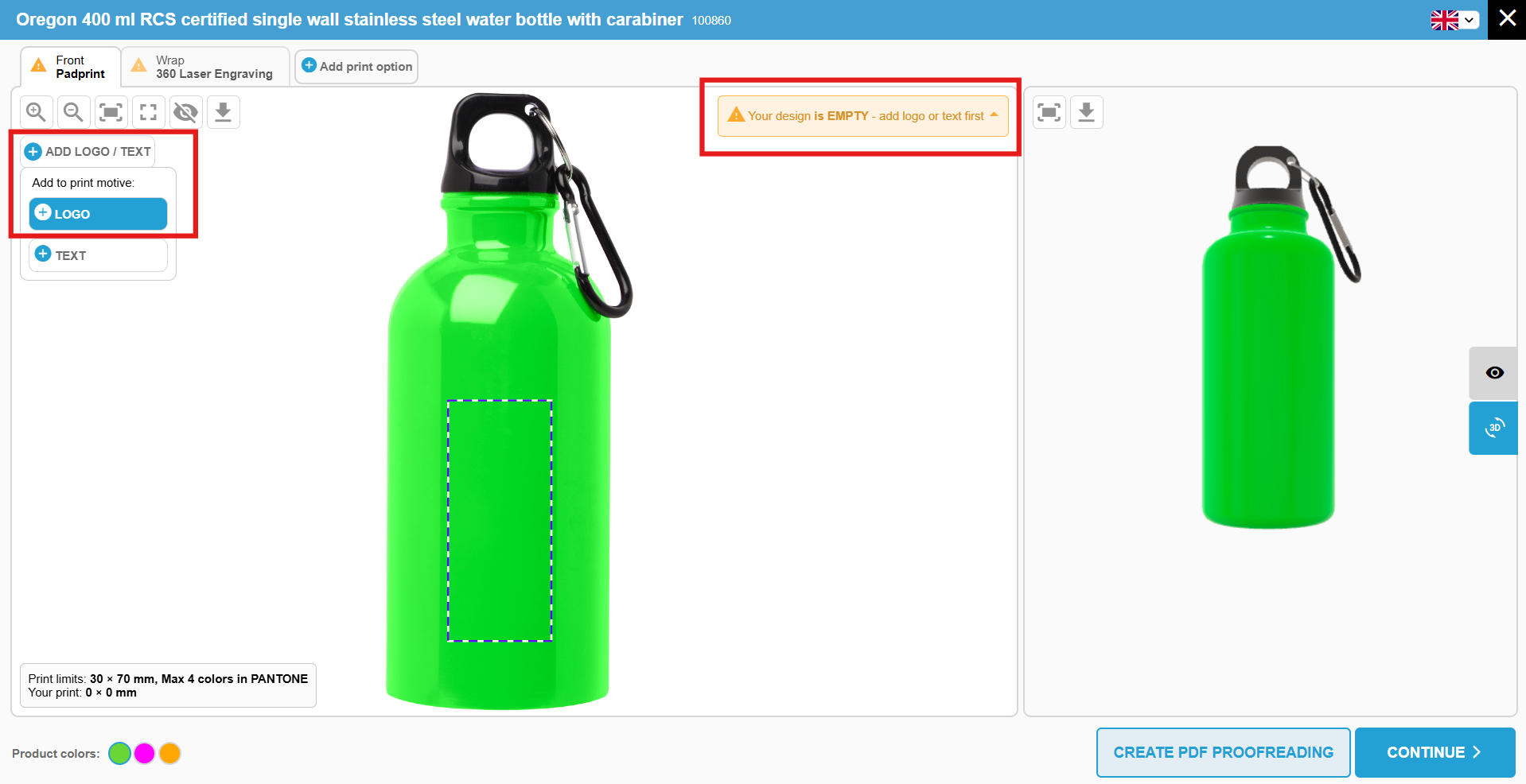
You will see a message “Your design is EMPTY - add logo or text first“. By hovering over the “+ ADD LOGO/TEXT“ button, you will see the option to add a logo. Click “+ LOGO“.
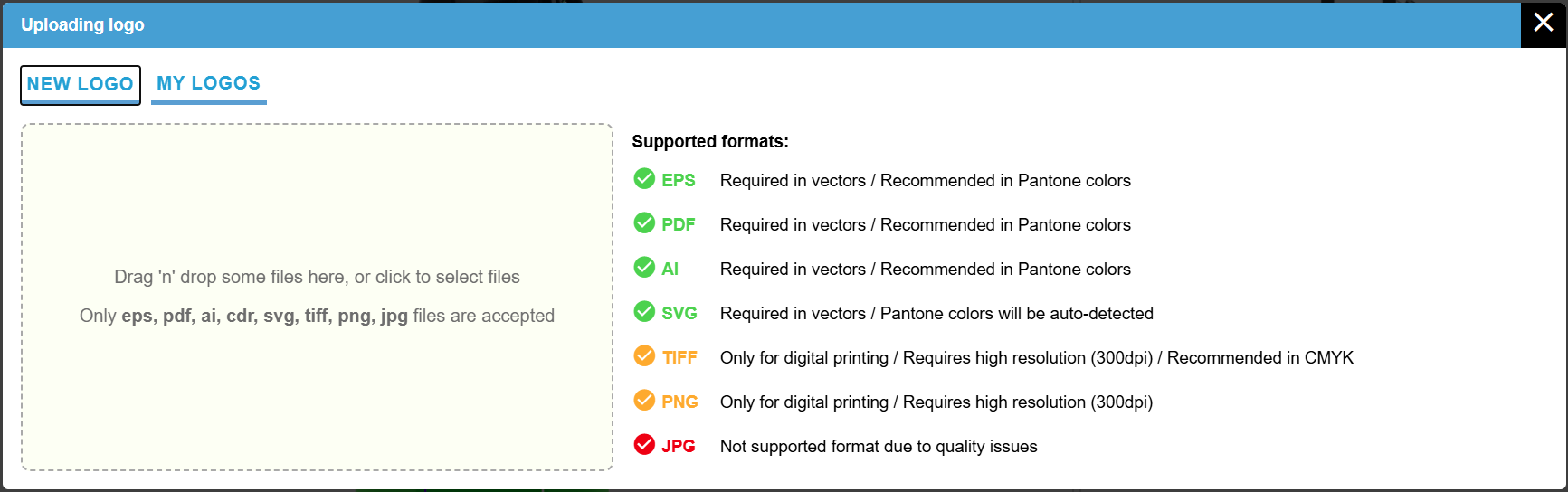
In the pop-up, you can upload a new logo by clicking the “Upload new” button or by using drag-and-drop in the “New logo” section.
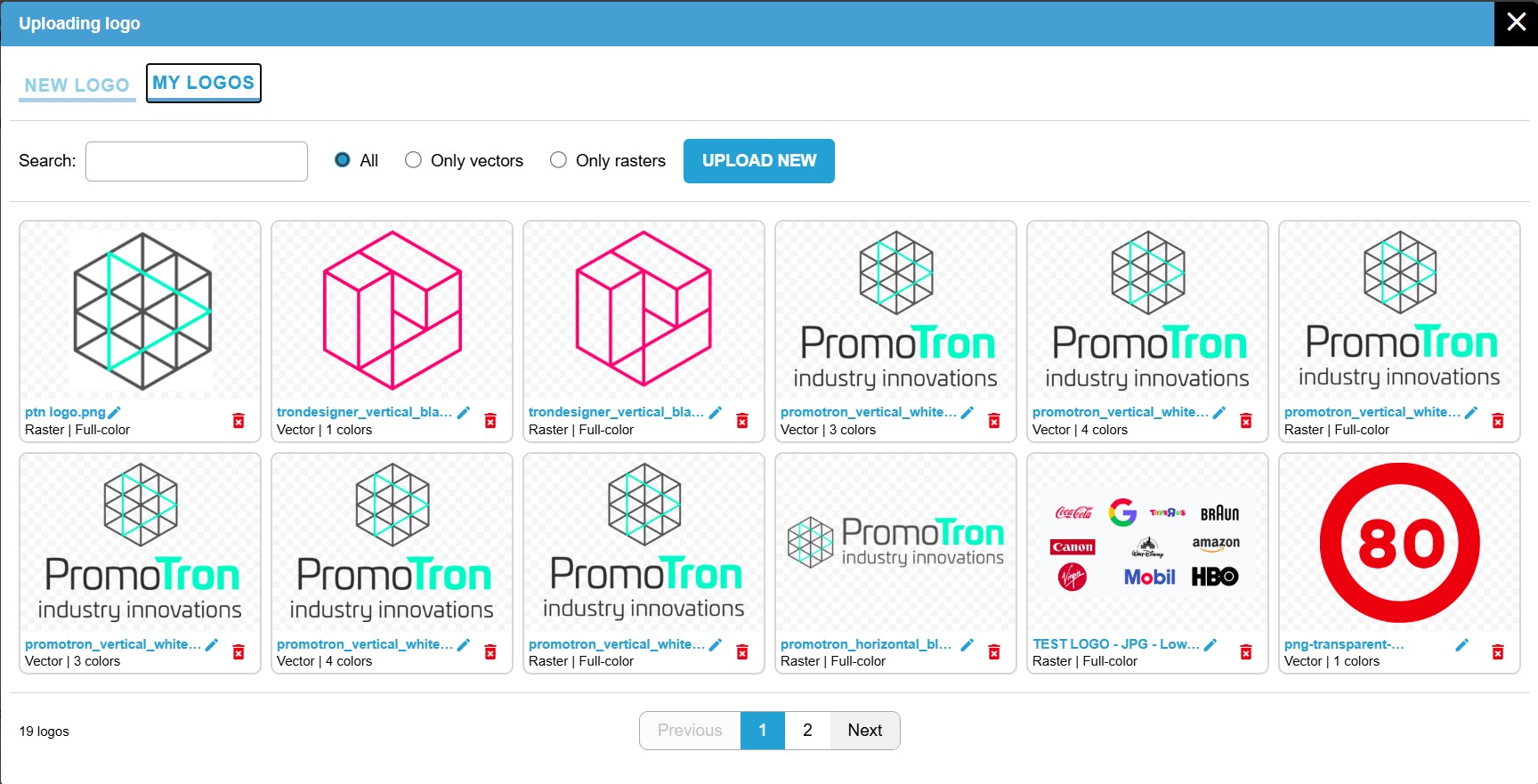
You can also select from the logo gallery in the “My logos” section. Here, you can search for logos and filter them using the “Only vectors” or “Only rasters“ radio buttons.
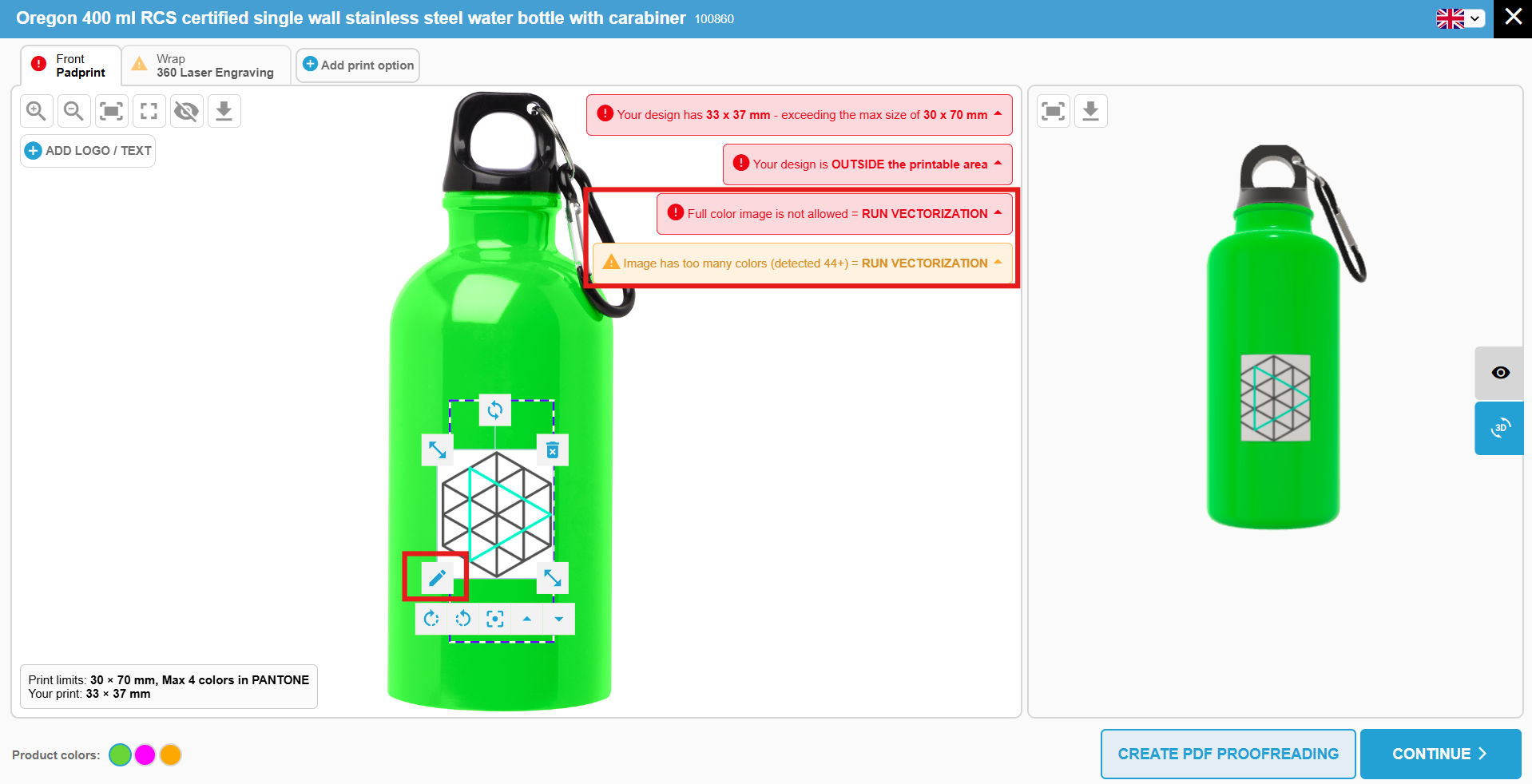
If the logo size exceeds the printable area, click the “Fit” button to position it correctly. This and other controls are displayed by clicking on the logo itself.
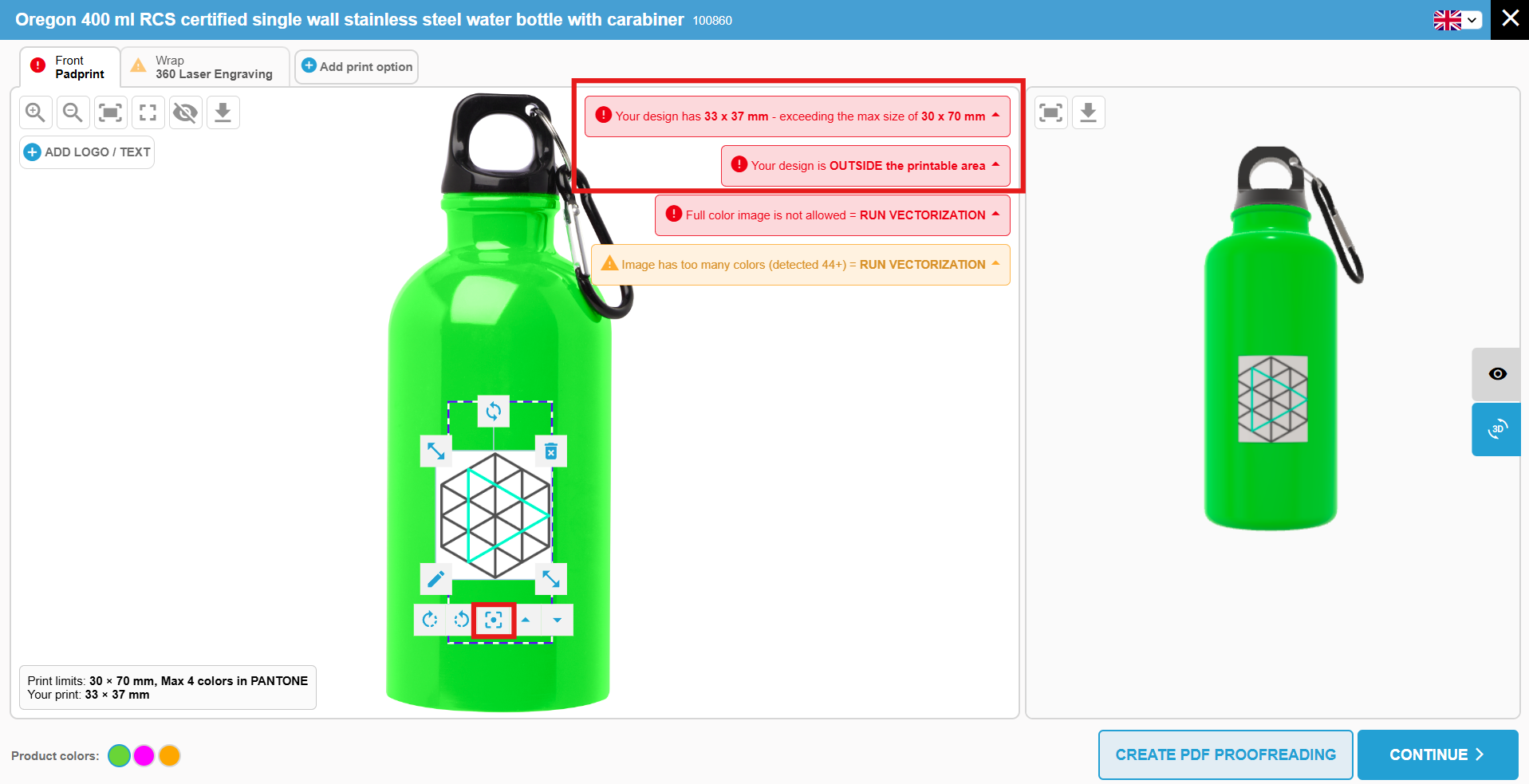
If you see the error message “RUN VECTORIZATION”, open the “Logo Editor” by clicking on the pencil icon.
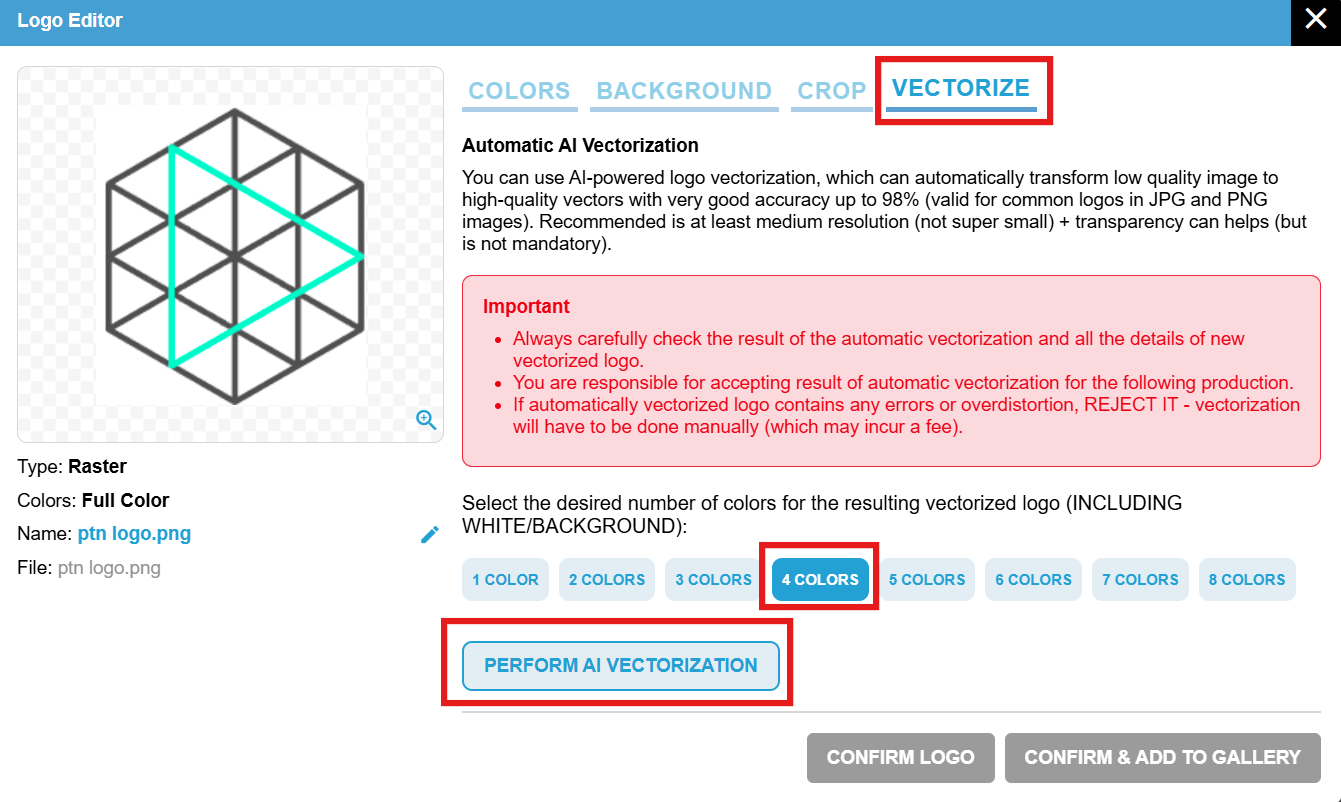
In the “Logo Editor”, open the “Vectorize” tab, select the desired number of colors, and click “Perform AI vectorization”.
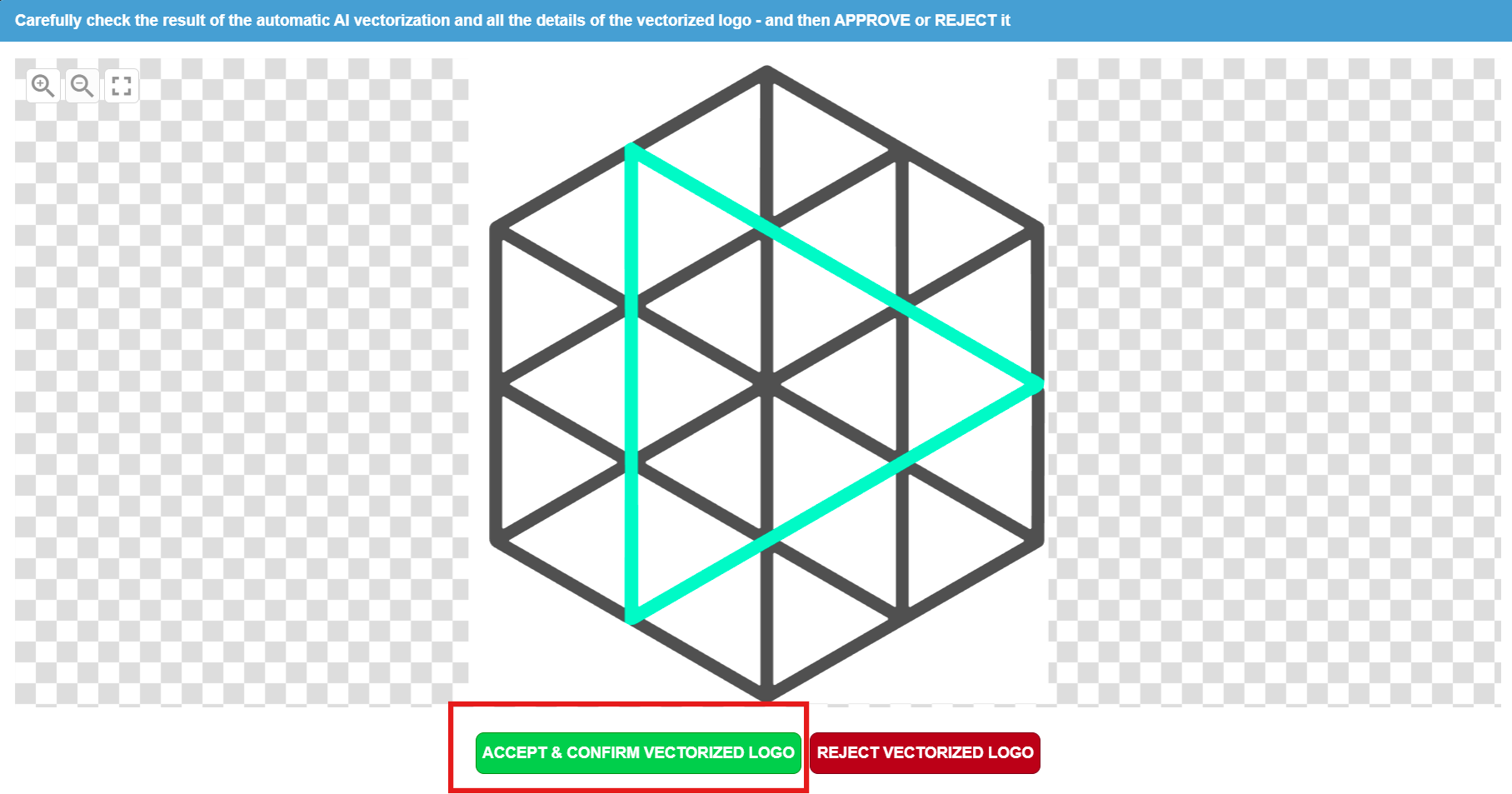
If you are satisfied with the result, in the next step click “Accept & Confirm vectorized logo“.
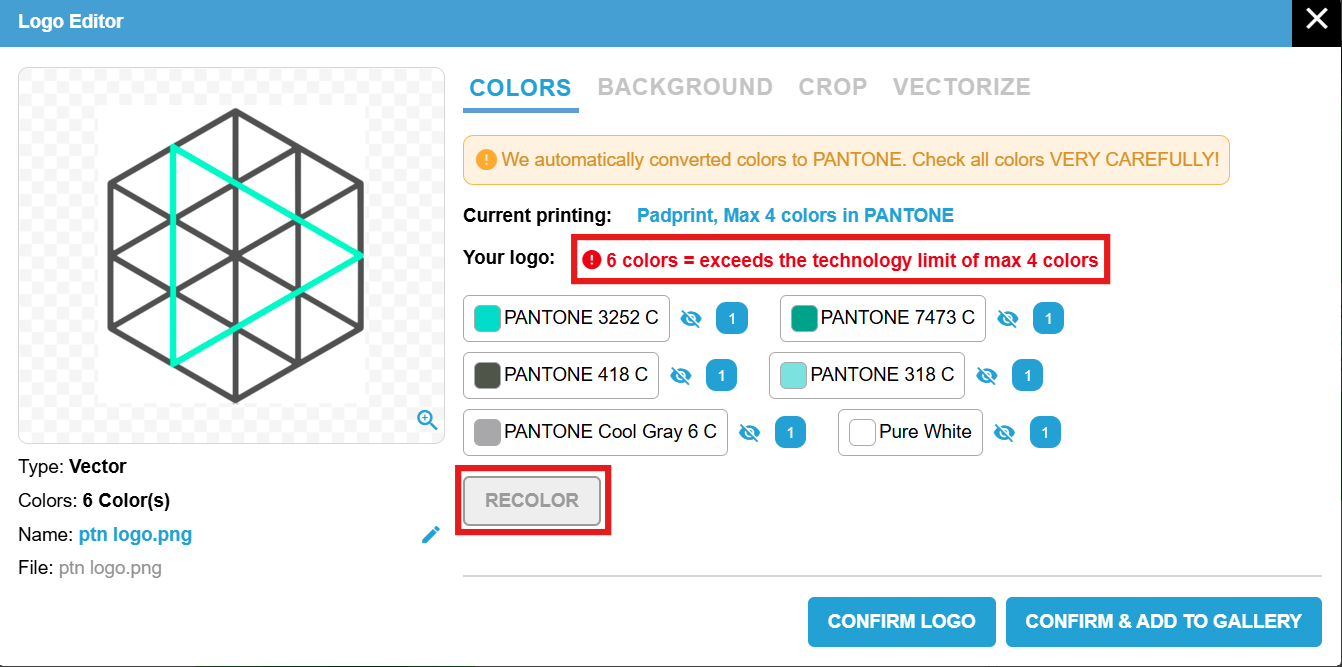
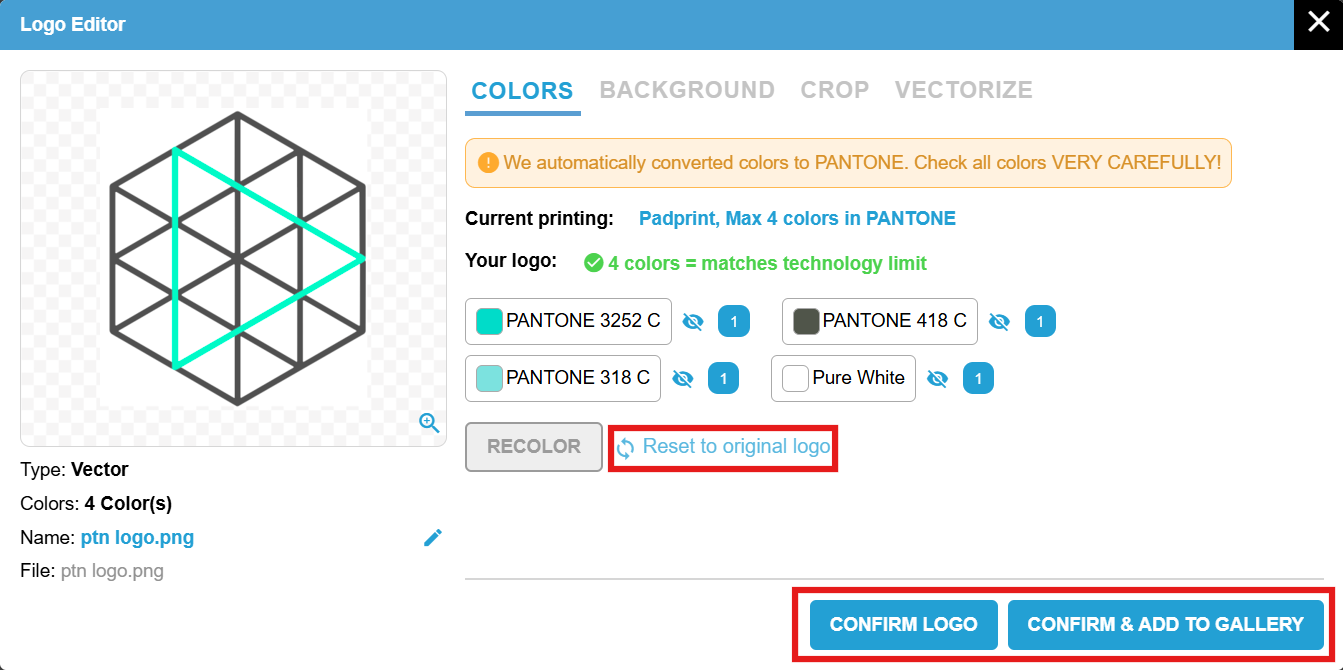
If the number of colors exceeds the limit for the chosen print technology, you can recolor the image.
In the “Colors” section, you can remove colors using the crossed eye icon or reduce colors to one by clicking the “1” button. Then, click “Recolor”.
If you are satisfied with the result in the next step you can proceed by “Confirm logo” button or “Confirm & Add to gallery” if you want also the logo to be saved to the gallery for later use.
If you are unhappy with the result you can “Reset to original logo” and recolor again.
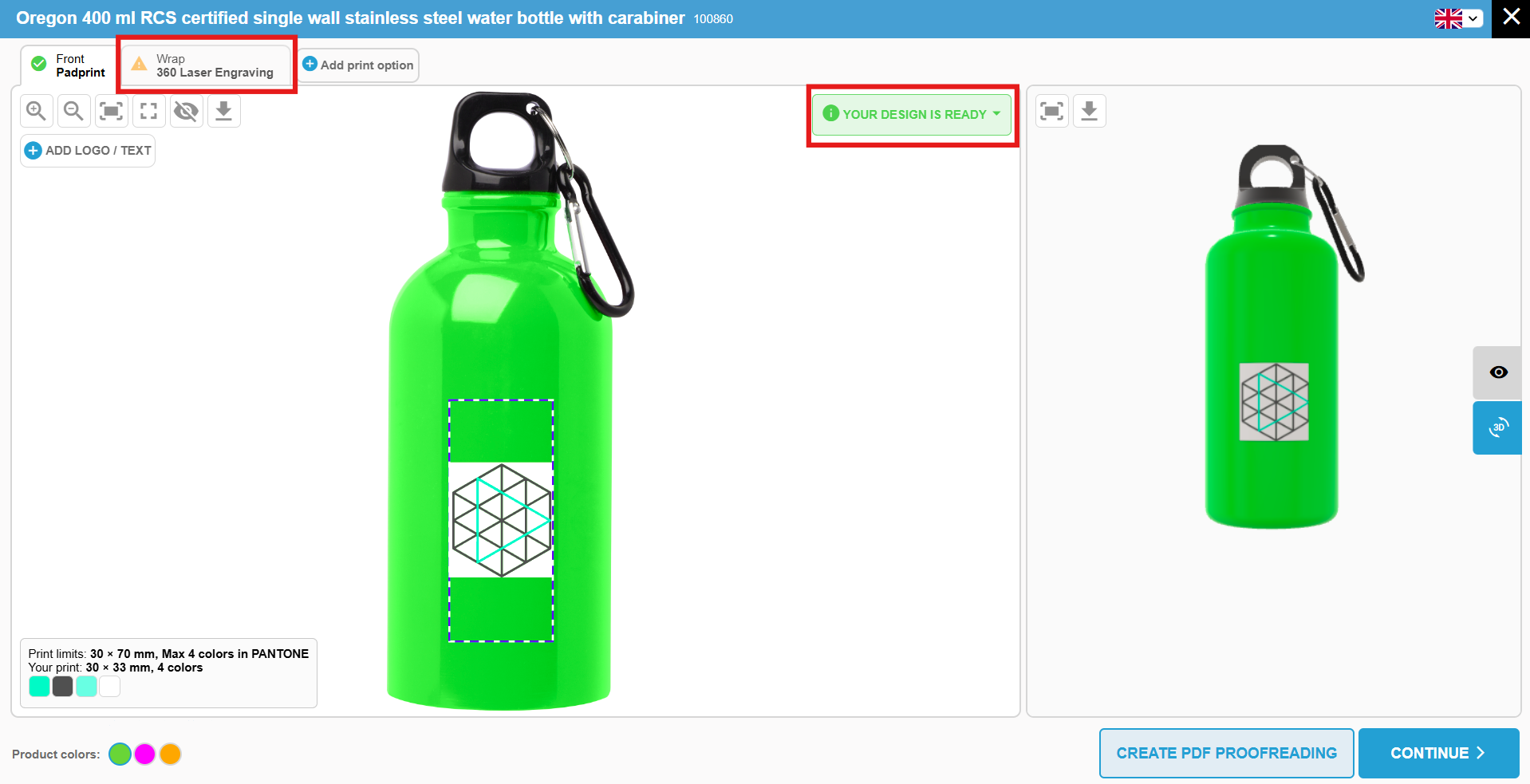
Now you can see a successful message “Your design is ready”. Now you can proceed to the next print option in the tabs.
Working with the text
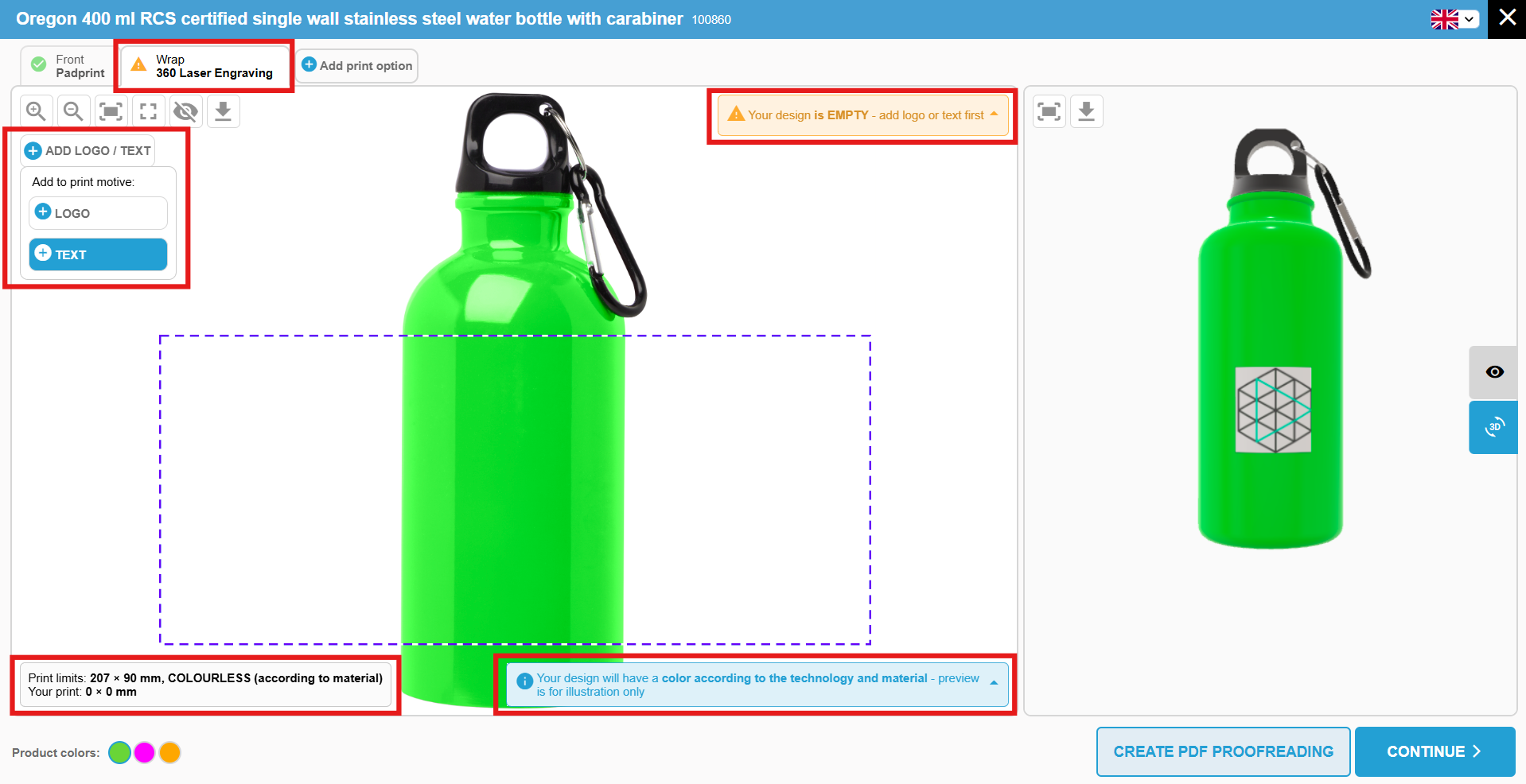
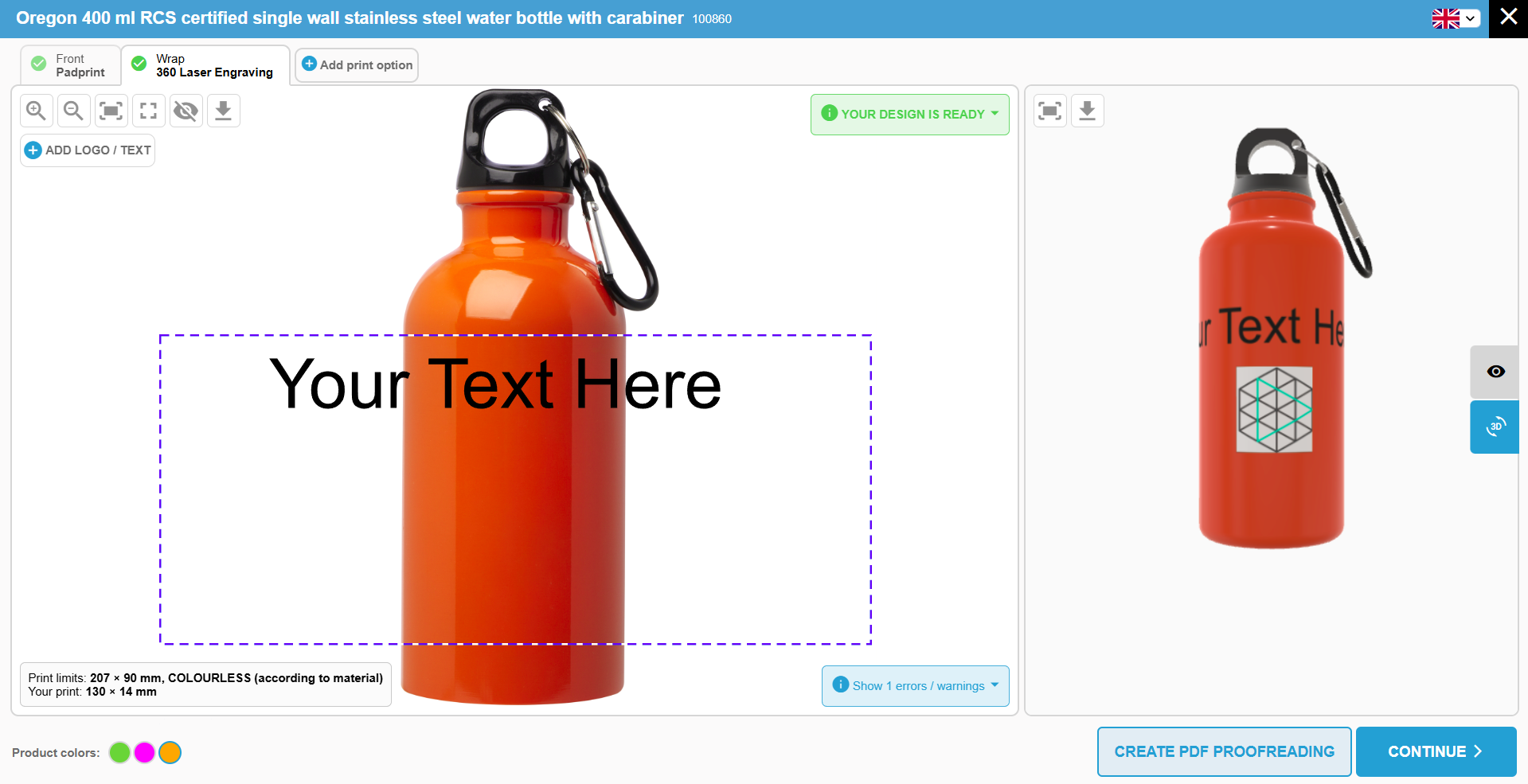
For the next print technology “360 Laser Engraving”, you may see a warning message in the bottom right. Please note that this specific design must be colorless; you can find more details in the status message at the bottom left of the screen.
The process is similar to adding a logo: Hover over the “+Add Logo/Text“ button.
Select “+ Text”.
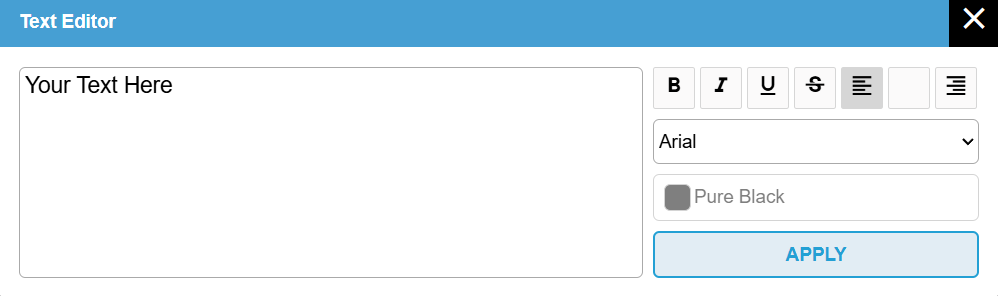
In the “Text Editor”, type your desired text and adjust the configuration. Click “Apply”.
Once applied, your design is ready. You can see how the text looks in combination with previous design in the right-hand visualization window. You can adjust the text size and position by simply clicking and dragging until you are satisfied with the result.
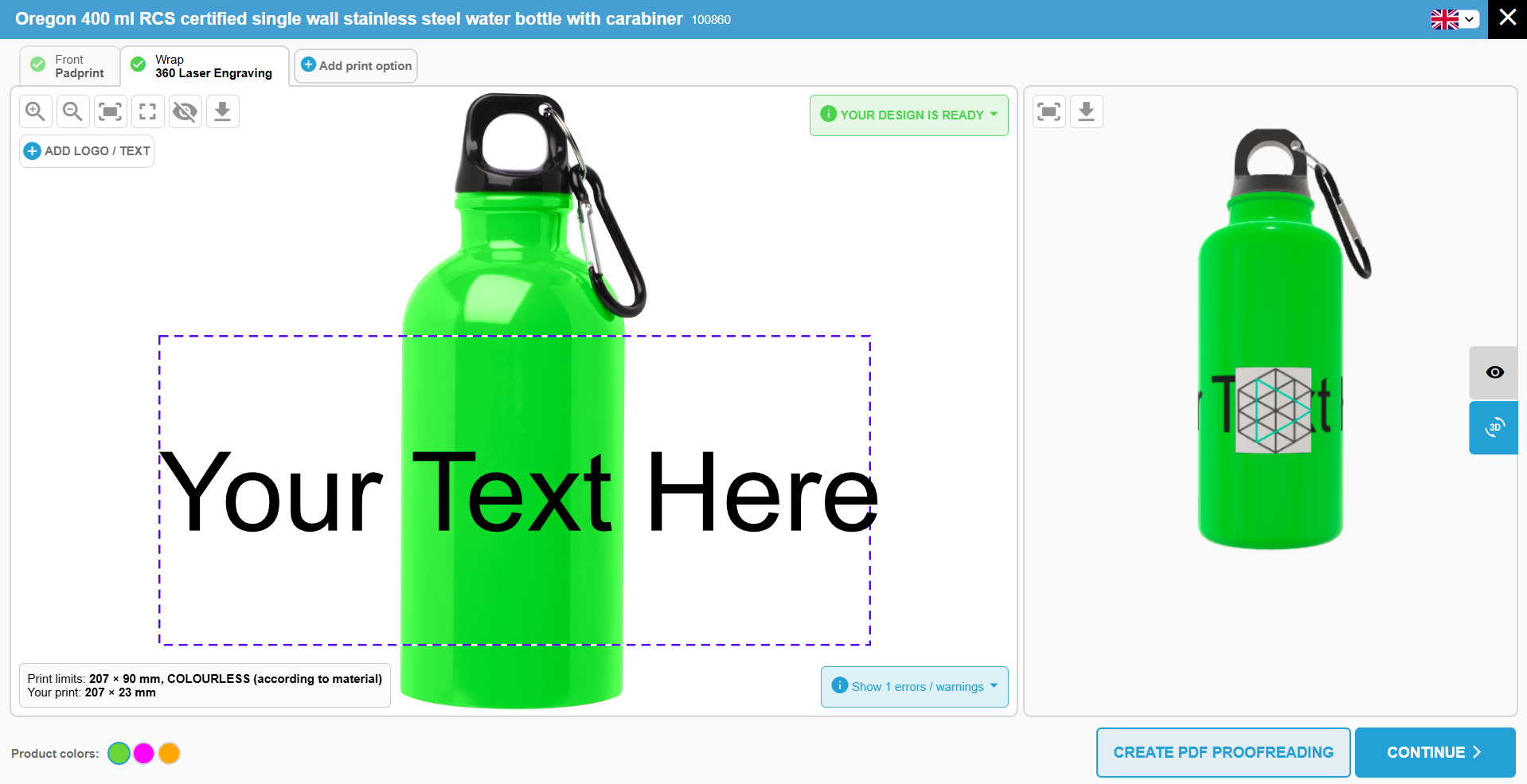
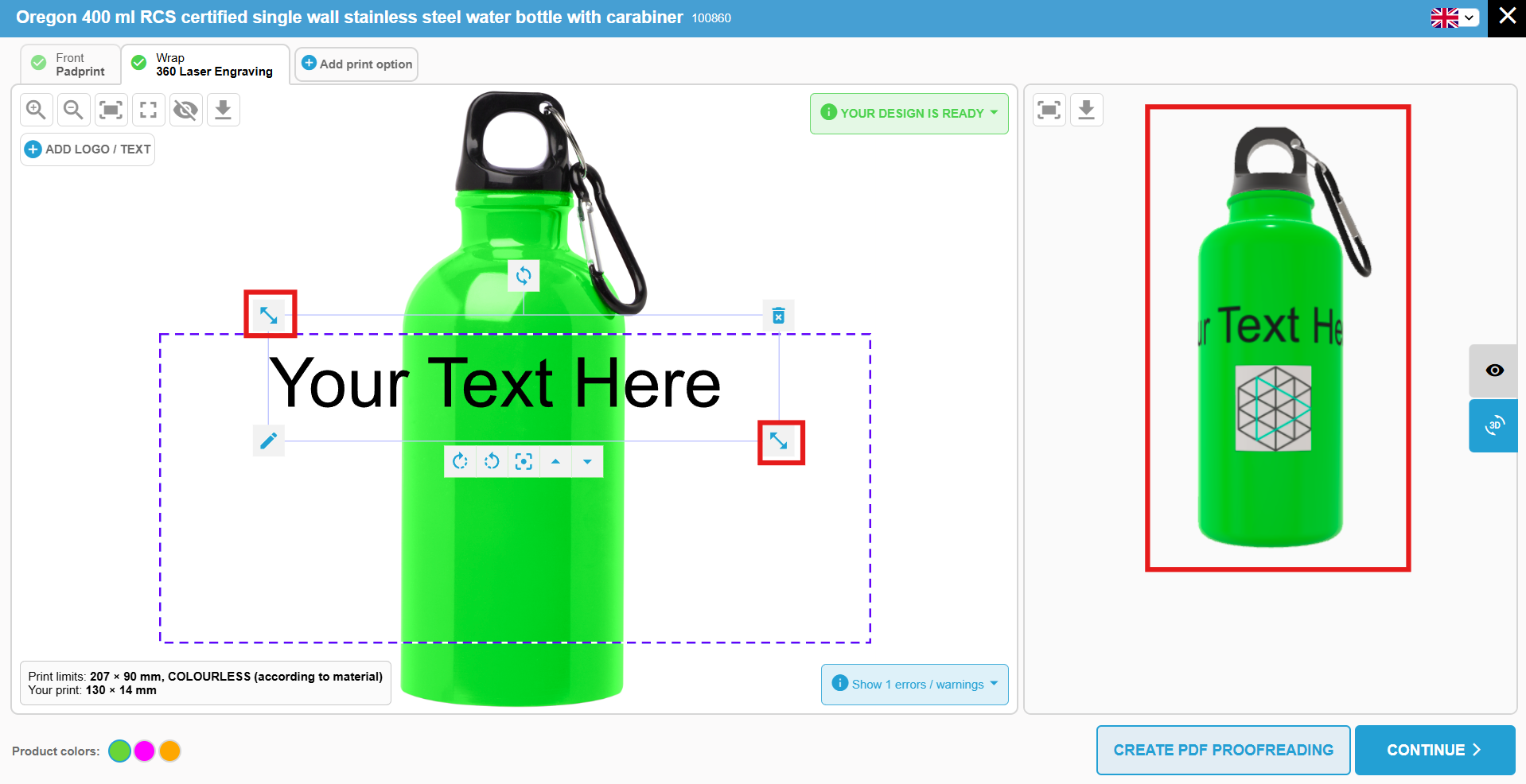
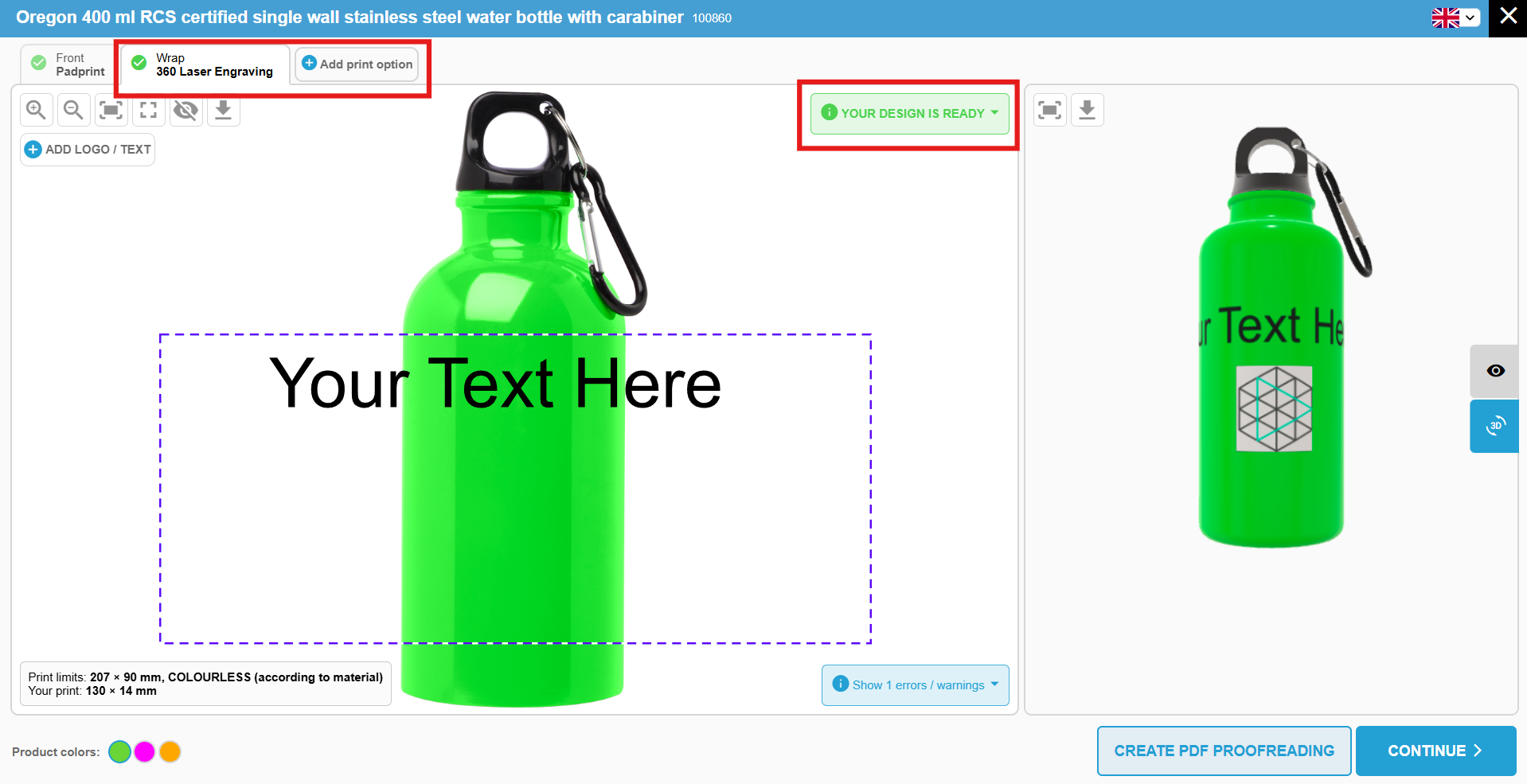
When the design is finished, a checkmark will appear in the print option tab alongside the message “Your design is ready.”
At this stage, you can finish your session or add another print option by clicking the “+ Add print option” button.
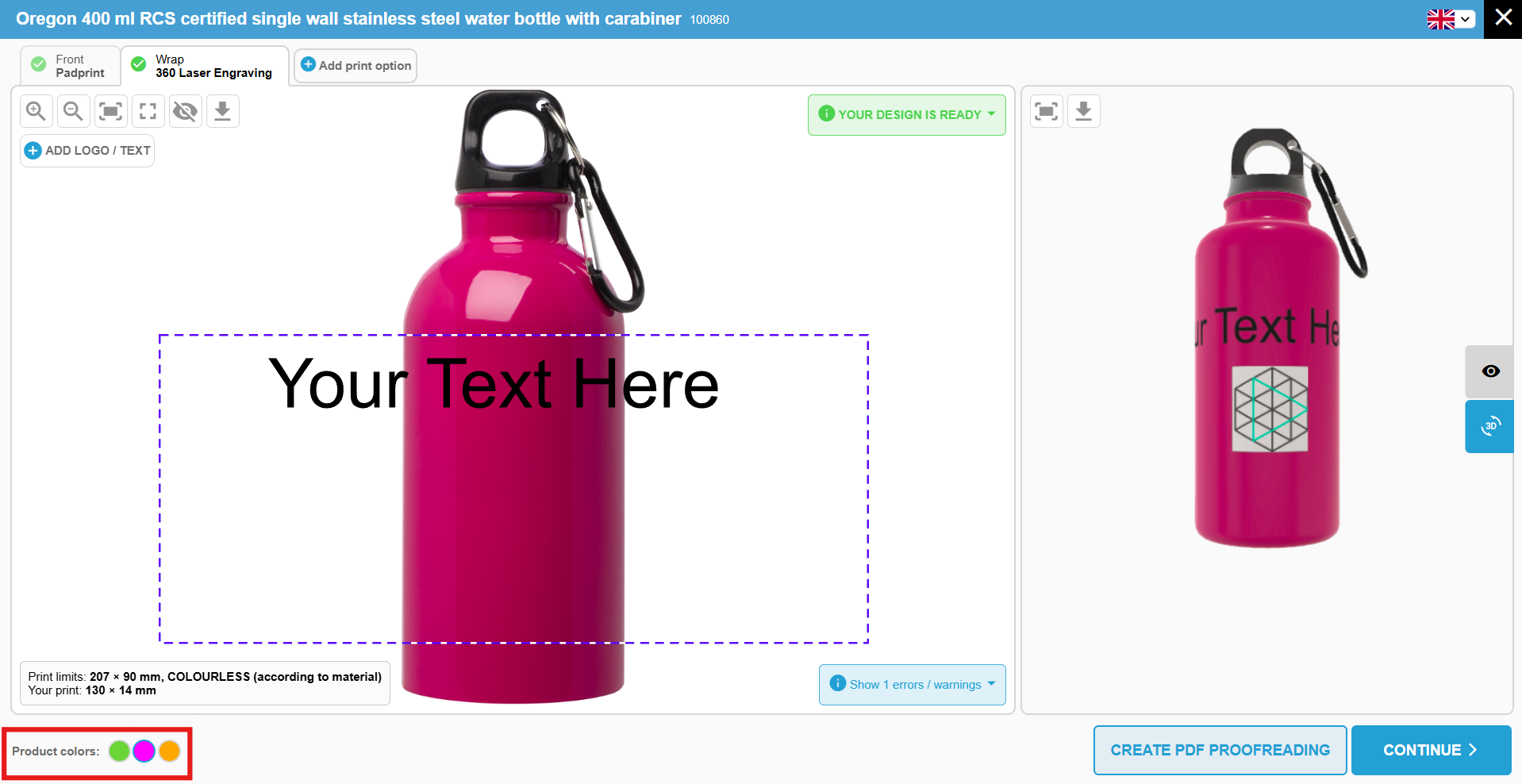
You can also switch between product colors at any time to see how your design looks on different backgrounds.
Proofreading and Print Job
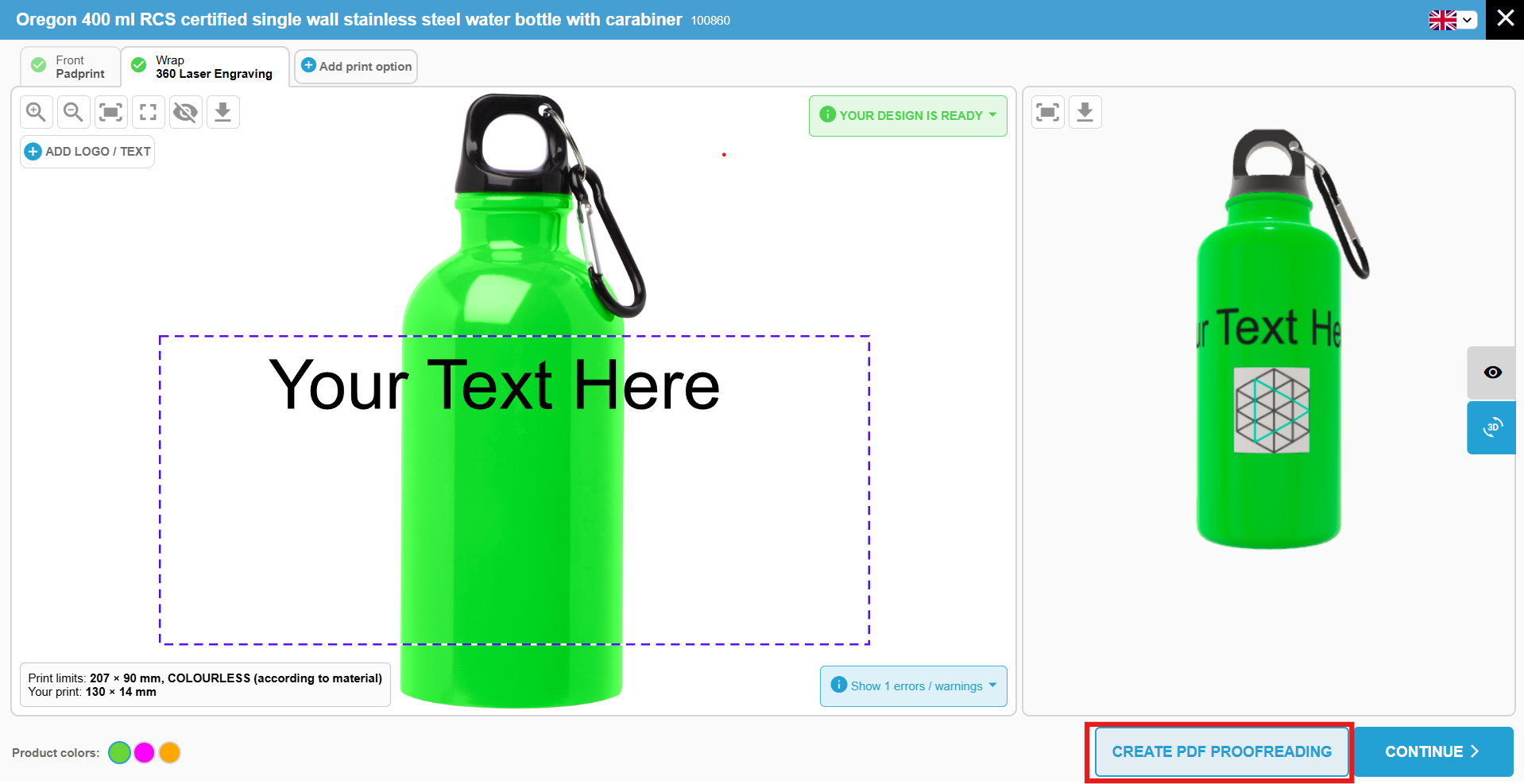
When you have finished designing, click the “Create PDF proofreading” button to generate and download a preview.
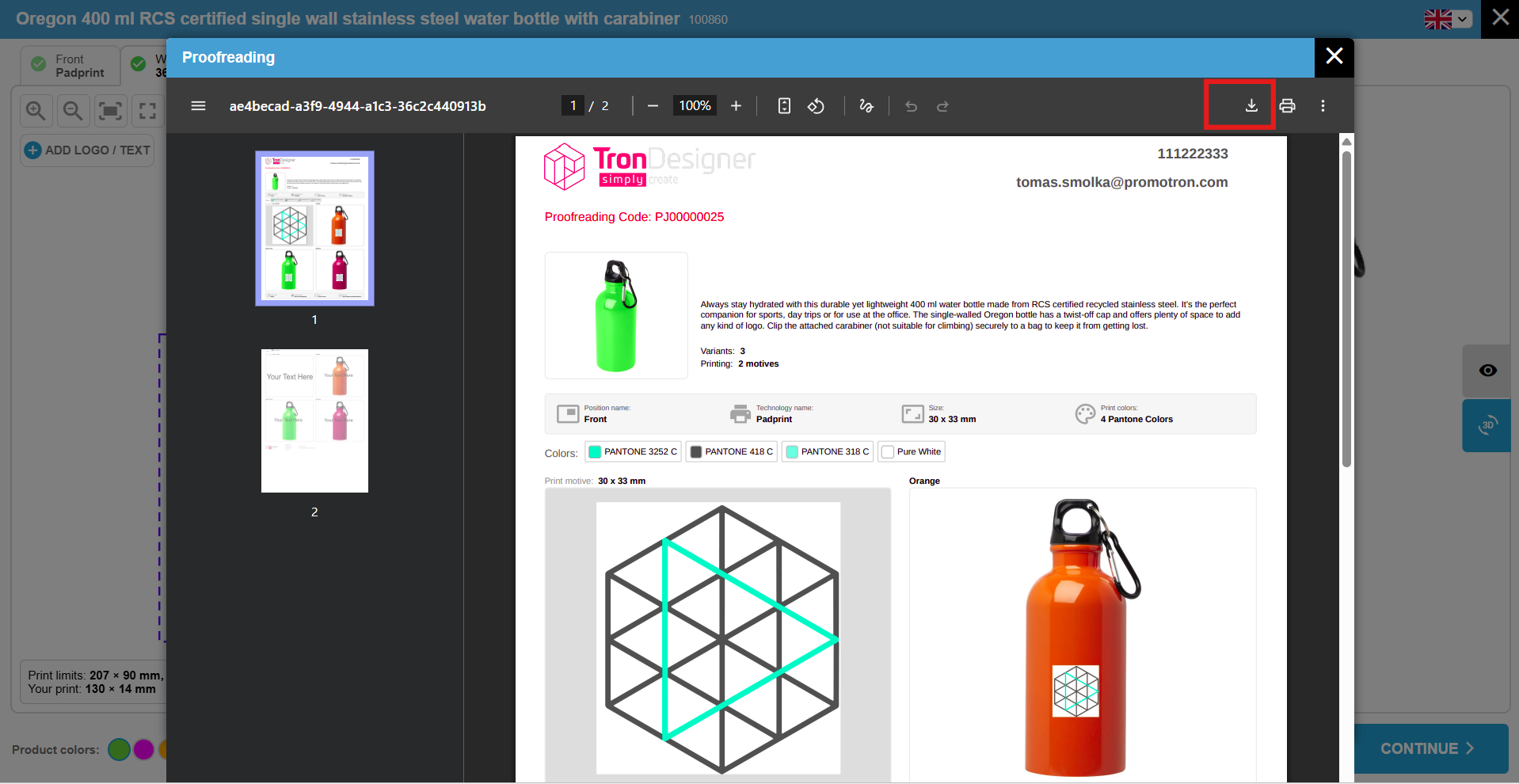
The proofreading document shows a preview of your design for each product color.
This document uses a default layout and style.
For final verification and to create the print job:
1. Click “Continue” button in the bottom right.
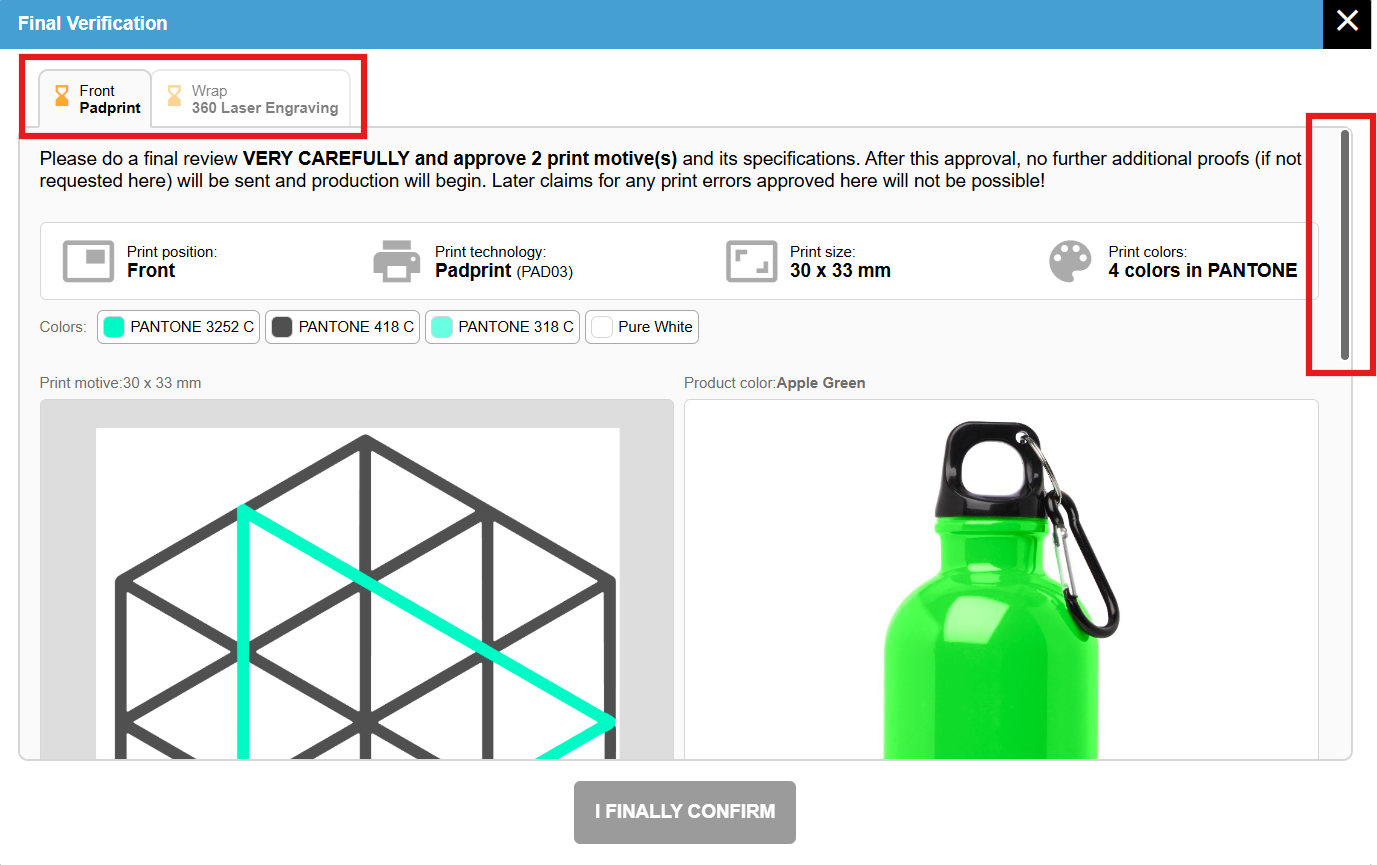
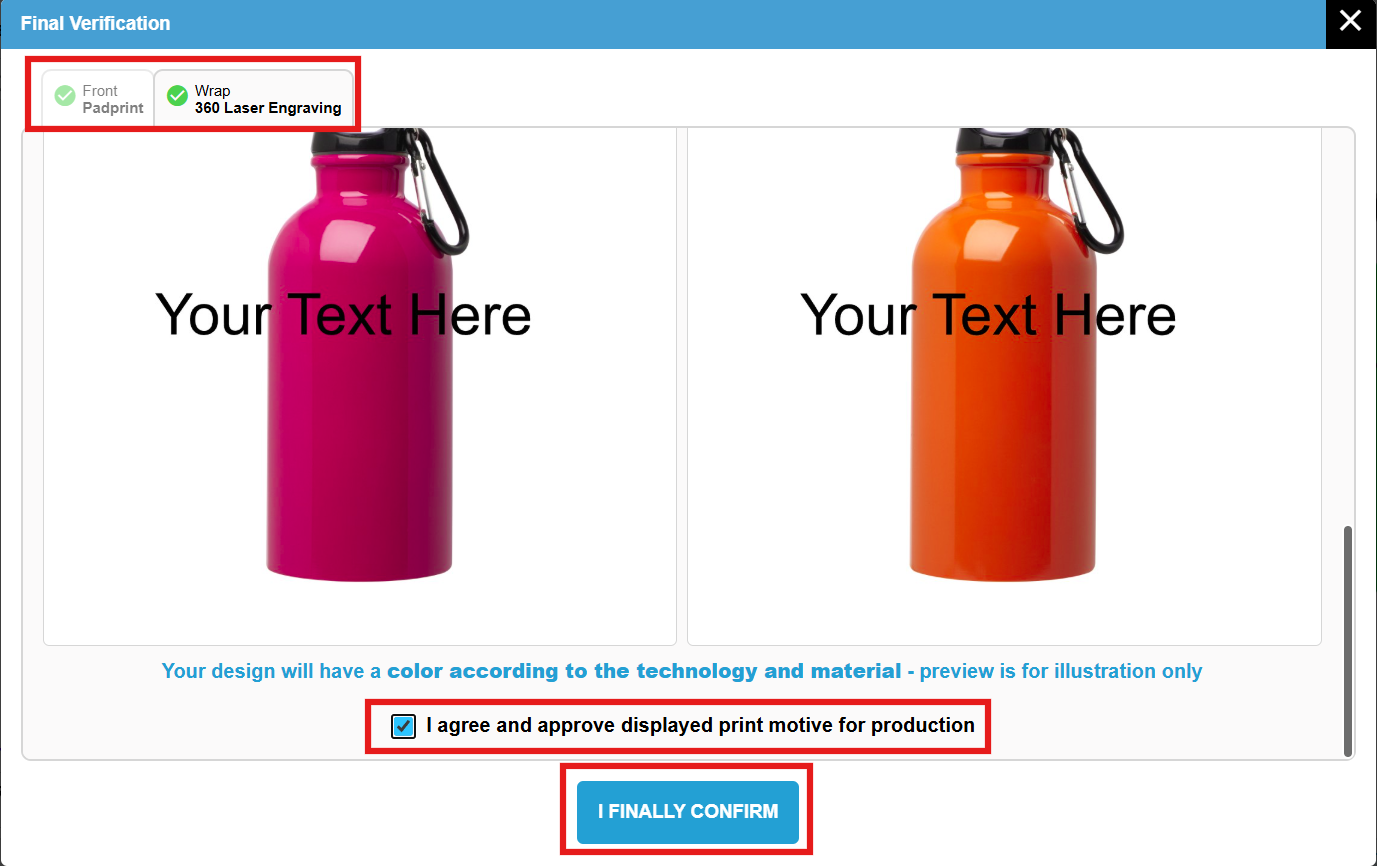
2. An overview pop-up will appear showing all print positions and product colors.
3. Scroll down for each print option, review the design, and check the box: “I agree and approve displayed print motive for production.”
4. Click “I finally confirm” to complete the process.
Your print job is now saved and ready!