Integration Scenarios
This article introduces the integration scenarios of TronDesigner, their differences, and how to choose the right one.
Introduction
These scenarios represent different ways TronDesigner can be implemented into your business workflow. You can choose a single scenario or implement parallel scenarios depending on your operational needs (e.g., using Scenario B for your customers and Scenario C for your internal sales team).
Integration Scenarios
Concept: A ready-to-use, hosted web application that functions independently of any other software.
Usage: Best for internal sales or graphics teams who need to create or manage designs manually without a system-to-system link.
Concept: A client-side integration where the Editor is embedded into your existing website as a seamless overlay. Requires technical integration.
Usage: Primarily for external customers to design, customize, and approve products directly during the shopping and checkout process.
Scenario C: ERP/CRM Integration
Concept: A server-side integration where the Editor is launched from your management system via a secure URL, opening in a browser. Requires technical integration.
Usage: Primarily for internal teams to create or modify designs directly from an existing order or customer record.
Scenario D: Inside TronManager
Concept: A native add-on to the TronManager with separate administration that requires no external technical setup.
Usage: Best for TronManager users who want to manage designs and print jobs directly within their product catalog and offer workflows.
Concept: A native add-on for the TronShop e-commerce platform that activates design features instantly. Requires no external technical setup.
Usage: Primarily for TronShop owners who want to provide their customers with a professional, automated design experience during checkout.
Who It’s For
Distributors are companies that sell and deliver promotional products to end-customers (individuals or organizations).
Suppliers are companies that manufacture and/or print promotional products. Their customers are typically distributor companies. Companies that both produce and print are considered Suppliers.
Whether the Editor is intended to be used by external customers affects scenario selection. Internal teams always have access to the Admin Portal in all scenarios.
All scenarios support both PromoTron catalog and custom products.
It is possible to implement multiple scenarios in parallel.
TronDesigner supports both supplier and distributor workflows.
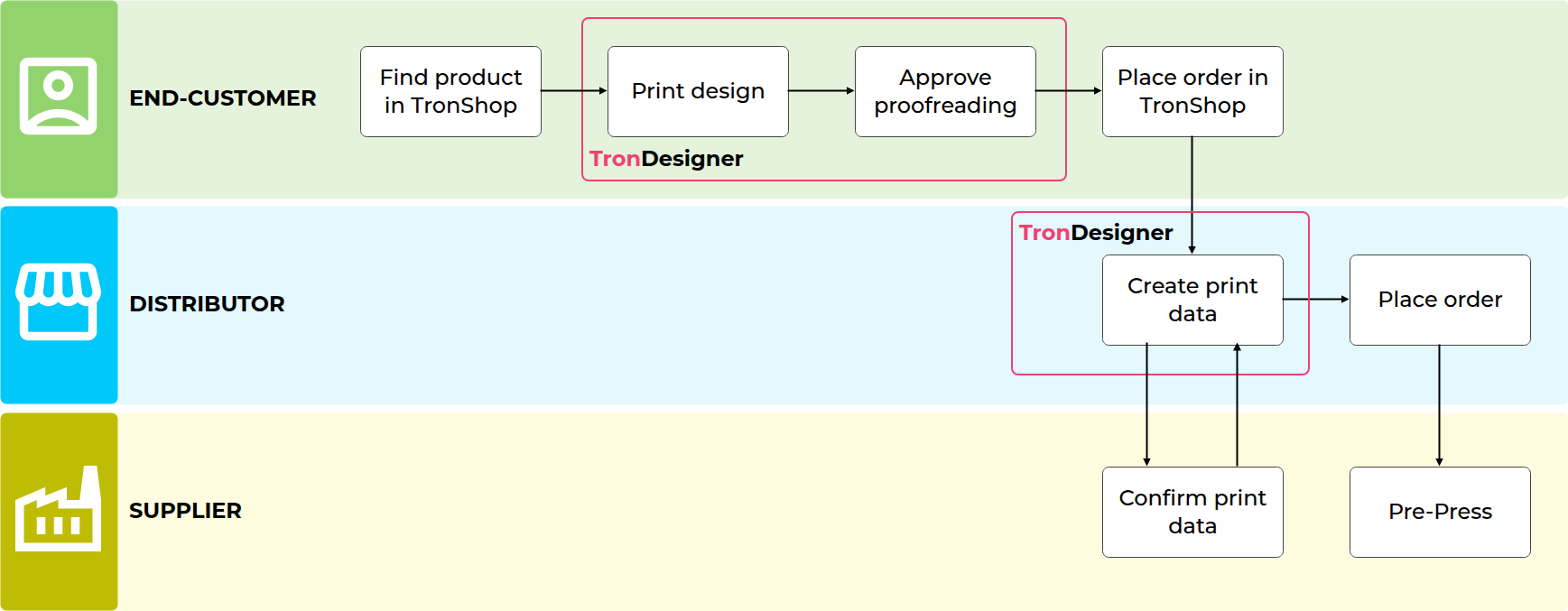
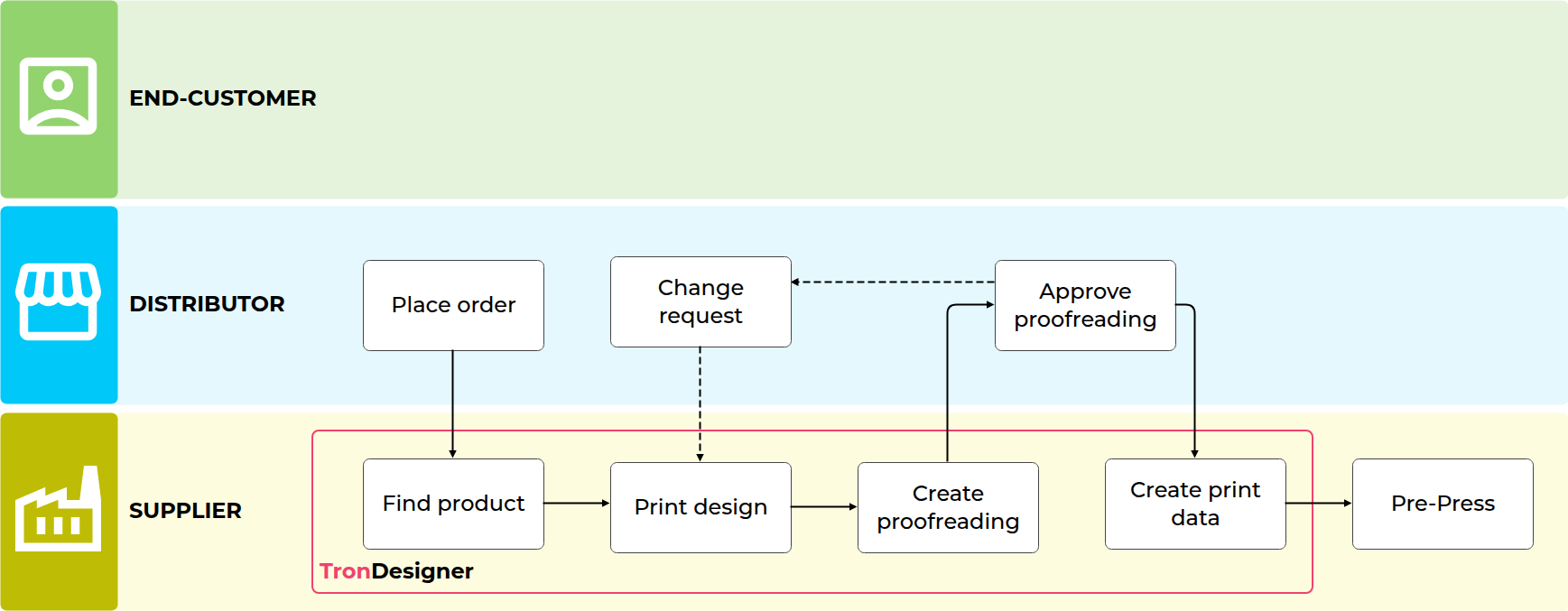
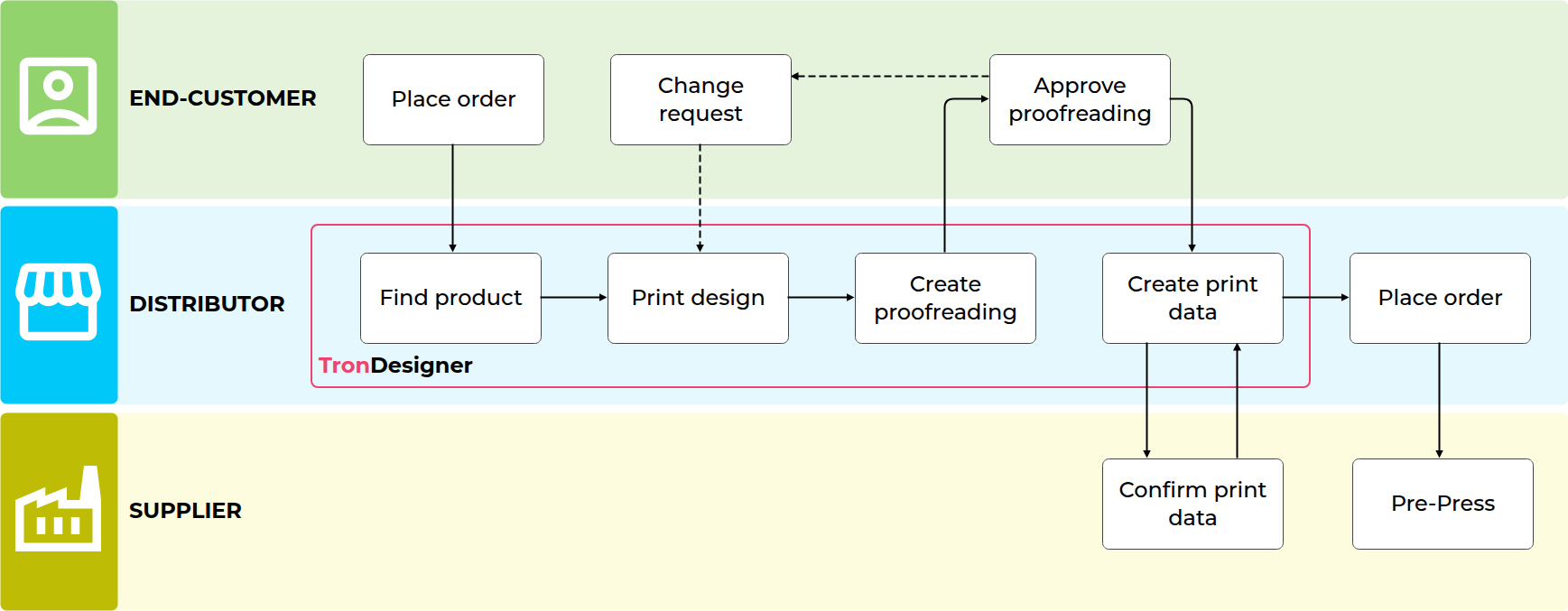
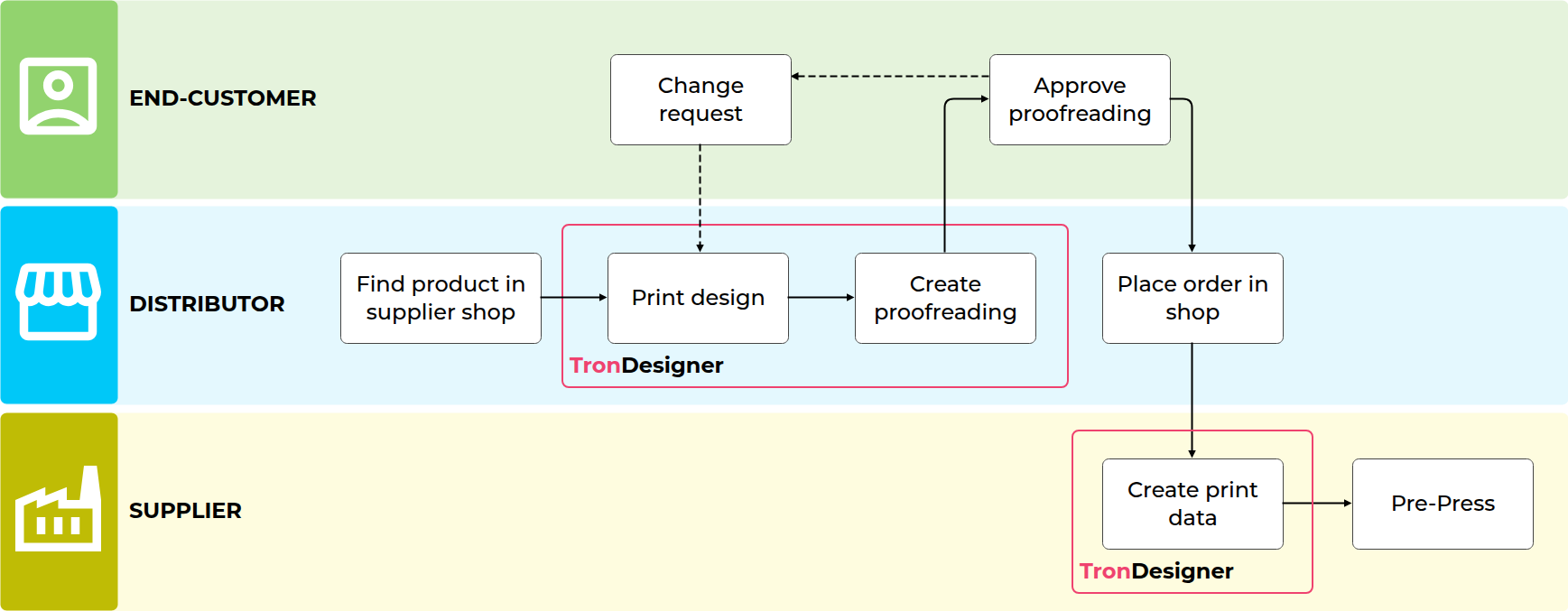
The following examples show the most common workflows in practice:
Note: A single user journey usually follows one specific scenario (e.g., a customer on a webshop will use either an overlay OR a new tab, but rarely both).
What to consider
Questions to answer before choosing your integration path:
🛒 System Setup:
Do you run a custom webshop, a TronShop/TronManager setup, an internal ERP/CRM, or a combination of these?
🎨 Design Responsibility:
Who will prepare designs: customers and/or internal team members?
🔒 Implementation Depth:
Are you looking for a "Zero-Code" setup to get started immediately (Scenarios A, D, E), or do you require a full integration with automated data synchronization (Scenarios B, C)?
📦 Data Source:
Will you work primarily with PromoTron catalog products, custom products, or both?
❗ Data Completeness:
Suppliers: Has your product and print data been successfully provided and imported into the PromoTron catalog? (see Editor calling modes)
Distributors: Are your suppliers’ products already "Web2Print ready" in the PromoTron database? (Check in Stats portal under “Web2Print”)
💶 Price calculation in your system:
Should the workflow include integrated price and quantity calculations?
A: Standalone App
Perfect for companies who want to start using TronDesigner immediately without any software integration. This scenario is ideal for pilots or testing the platform's features before committing to a full technical integration.
Scenario specifics
Access: Works as a fully hosted web application accessible via a direct URL.
Usage: Ideal for sales and graphics teams who need to create and manage designs.
Technical Effort: Zero development, the fastest way to start; no coding, API setup, or technical integration required.
Data Exchange: Manual (No automated data return).
Typical workflows
“I am a supplier”:
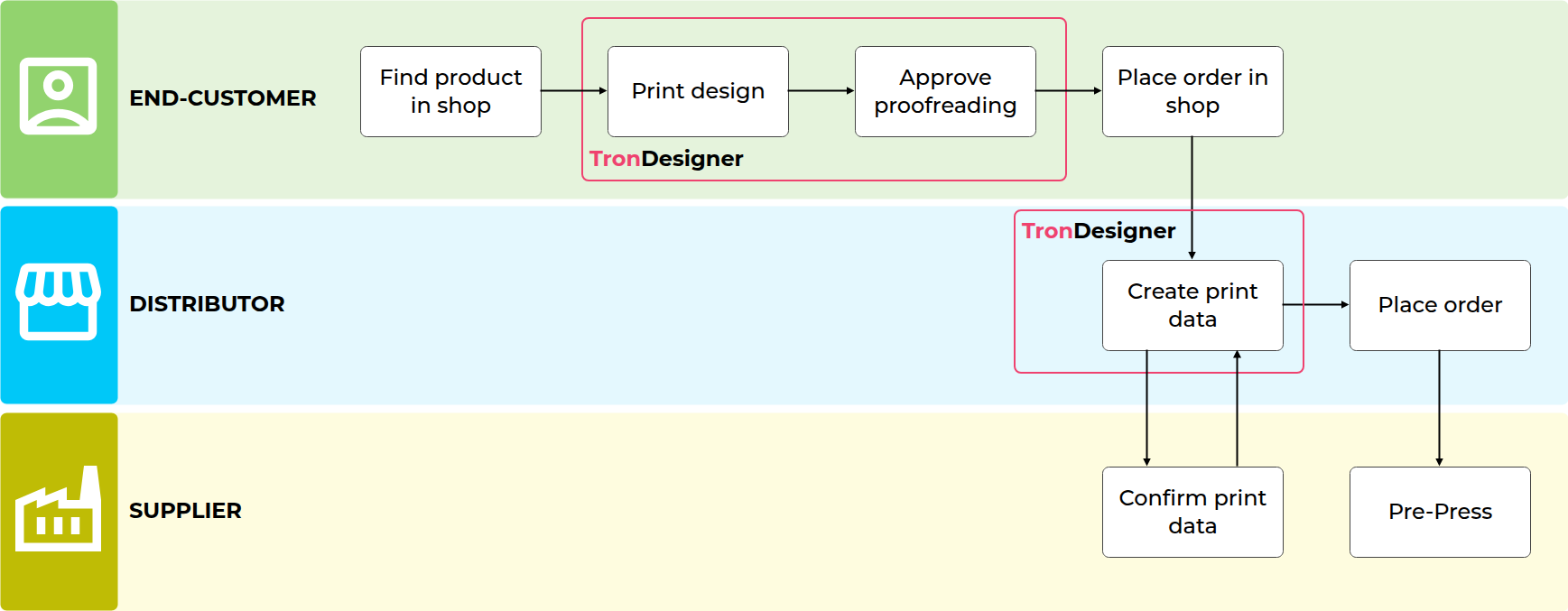
“I am a distributor”:
B: In My Own Webshop
Ideal for companies that run their own webshop and want customers to design and approve artwork directly during the online shopping process.
Scenario specifics
Access: Integrated as a part of the shopping experience, embedded into a webshop or web application as an overlay.
Usage: Customers can design during ordering and deliver print-ready data automatically.
Technical Effort: Requires a developer to connect the Editor to your shop's front-end and database.
Data exchange: Via JS Events, Webhooks, or API calls.
Linking: Each Print Job is automatically linked to the webshop cart and order items.
Coming soon: Optional custom integration using individual APIs or components.
Typical workflows
“I am a supplier”:
“I am a distributor”:
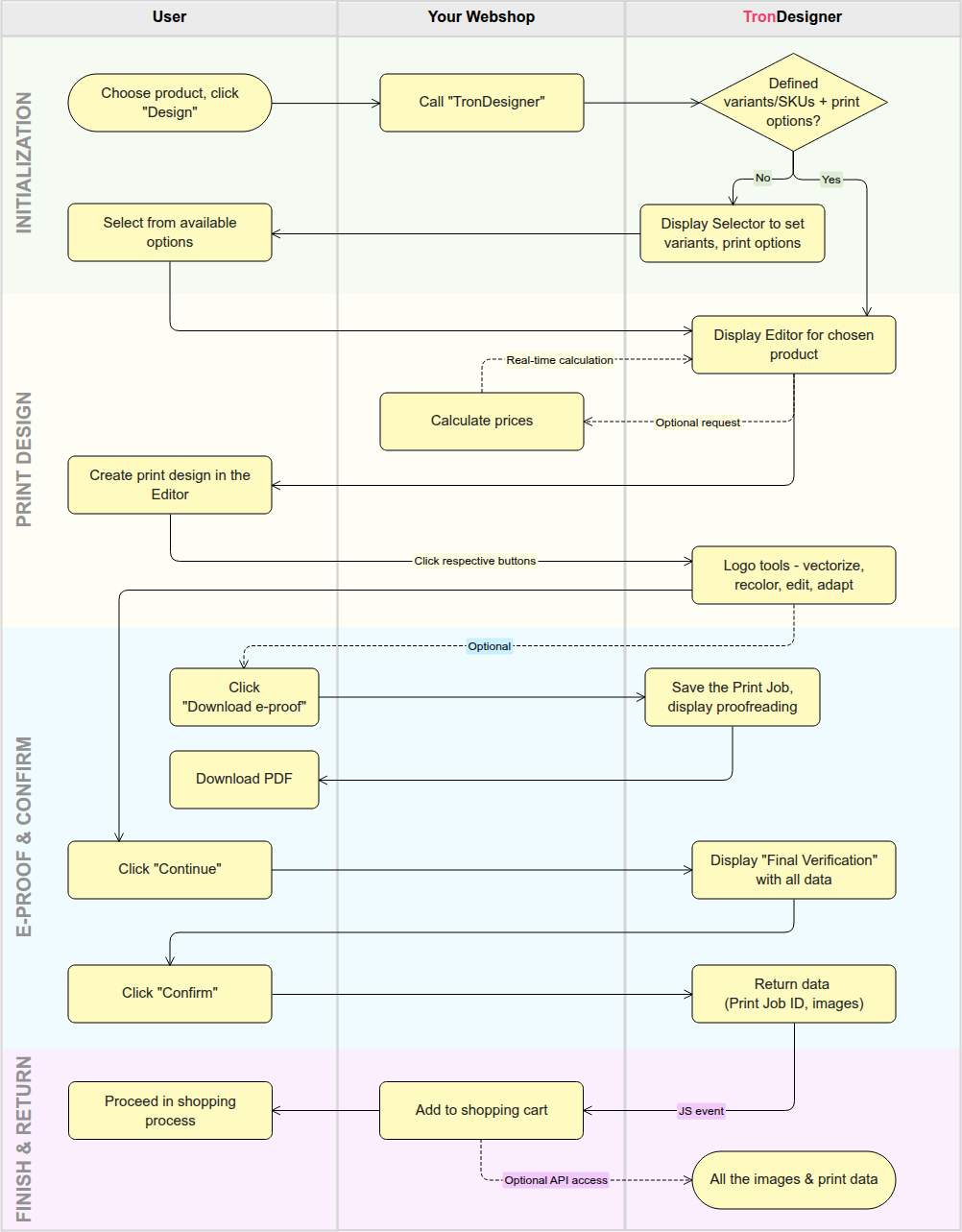
Integration Workflow (B)
The diagram below illustrates how the Webshop User, the Webshop, and TronDesigner interact during a typical integration flow.
Input step - “Call TronDesigner”. The webshop initializes the Editor. This can be done via:
Web Script (Recommended): Opens the Editor in a seamless overlay.
URL Call (Alternative): Opens the Editor in a new browser tab. This is for experiences where modifying the site's JavaScript is not an option.
Output step - “Return data (Print Job ID, images)”. When the user finishes their design, TronDesigner generates a unique Print Job ID. This ID is the "key" to all design assets. The data is returned via:
JS Event: A real-time event delivered directly to your webshop's front-end. Use this, for example, to update the cart.
Webhook: A server-to-server POST request pushed to your backend. This is the most reliable way to save the design to your database.
REST API (On-Demand): At any time after receiving the Print Job ID, your system can call our API to retrieve production files (PDFs) or design metadata.
Note: You can use these return methods simultaneously to ensure both a fast user experience and a secure backend. This is expected for this scenario.
C: ERP/CRM Integration
Best for companies that manage orders internally and want their teams to create or edit print designs by launching the Editor directly from their existing management systems.
Scenario specifics:
Access: Integrated into your company’s ERP or CRM; the Editor is launched via secure links embedded in your internal order or product records.
Usage: Intended for internal teams (sales, graphics).
Technical Effort: Requires a developer to connect your internal system's backend to the TronDesigner API.
Data Exchange: Data can be sent back via Webhooks or pulled through REST API.
Linking: Print Jobs are automatically linked to the respective orders.
Typical workflows
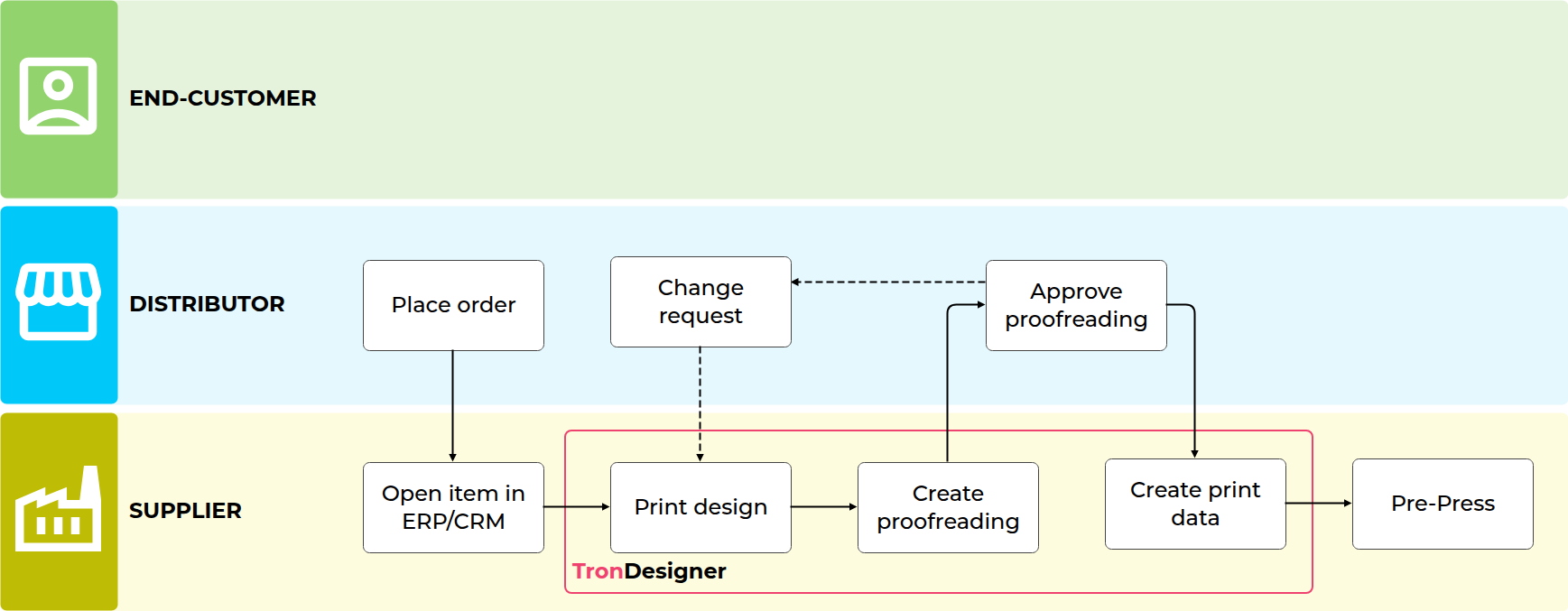
“I am a supplier”:
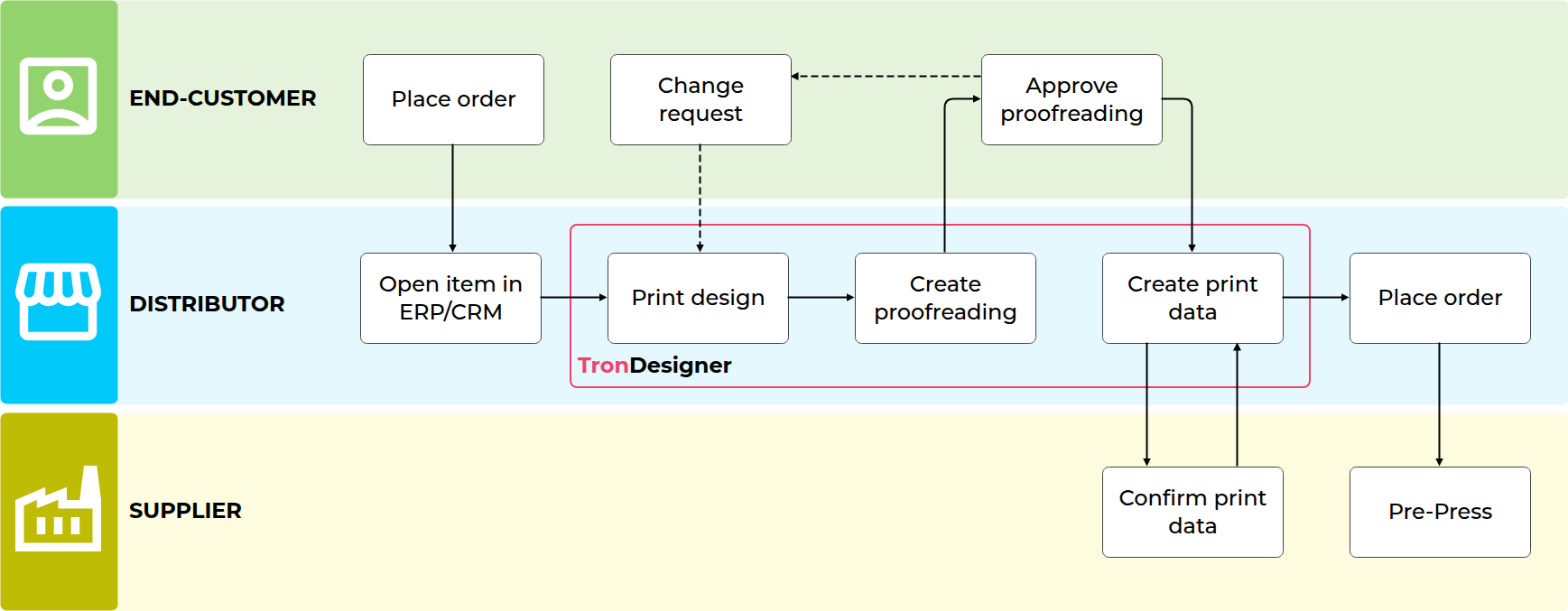
“I am a distributor”:
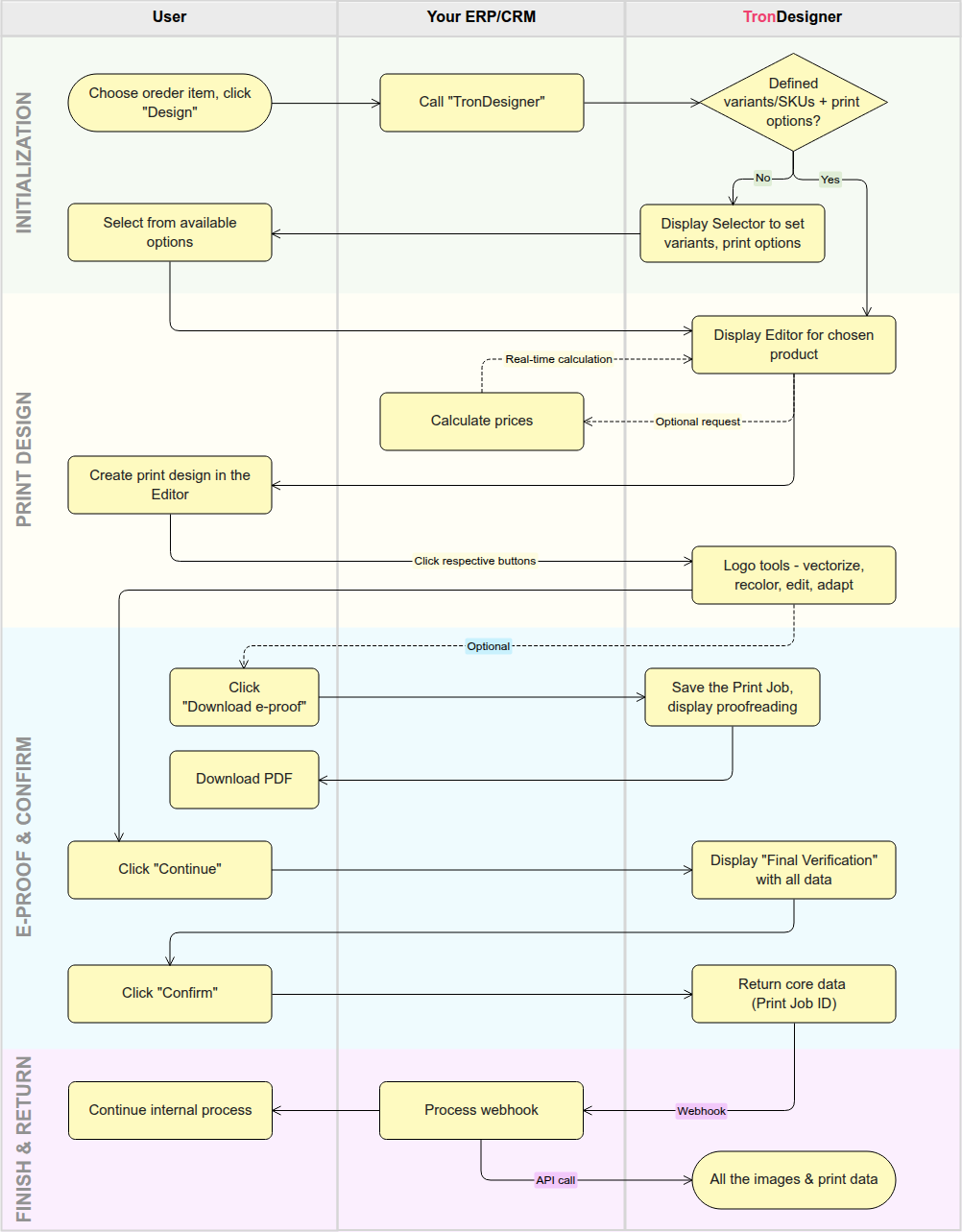
Integration workflow (C)
The diagram below illustrates how an ERP/CRM system, its user, and TronDesigner interact during a typical integration flow.
Input step - “Call TronDesigner”. The ERP/CRM initializes the Editor. This can be done via:
URL Call (Recommended): Opens the Editor in a new browser tab. This is the standard method for ERP/CRM integrations, as it requires no modification to the system's front-end JavaScript and works across various internal software environments.
Output step - “Return data (Print Job ID, images)”. When the user finishes their design, TronDesigner generates a unique Print Job ID. This ID is the "key" to all design assets. The data is returned via:
Webhook (Primary): A server-to-server POST request pushed to your backend. This is the most reliable way to save the design to your database and is the expected standard for this scenario.
REST API (On-Demand): Once the ID is received, your system uses our API to pull production files (PDFs) or design metadata. API access is expected in this scenario.
JS Event (Optional): Triggered only if your system supports embedding a front-end event handler. This is rarely used in ERP/CRM scenario.
Note: While these methods can be used simultaneously, the Webhook and REST API are the primary pillars of this scenario.
D: Inside TronManager
Best for TronManager users who want to create and manage print designs directly from their existing product catalog.
This scenario is an optional add-on to TronManager (see TronManager web).
Scenario specifics:
Access: Integrated directly into the TronManager interface; the Editor is launched from within your product catalog.
Usage: TronManager users.
Technical Effort: Zero development required; can be activated instantly with a valid license.
Data Exchange: Fully automated and native; no external configuration required.
Coming soon: Deeper integration with TronManager Offers and direct Print Job management.
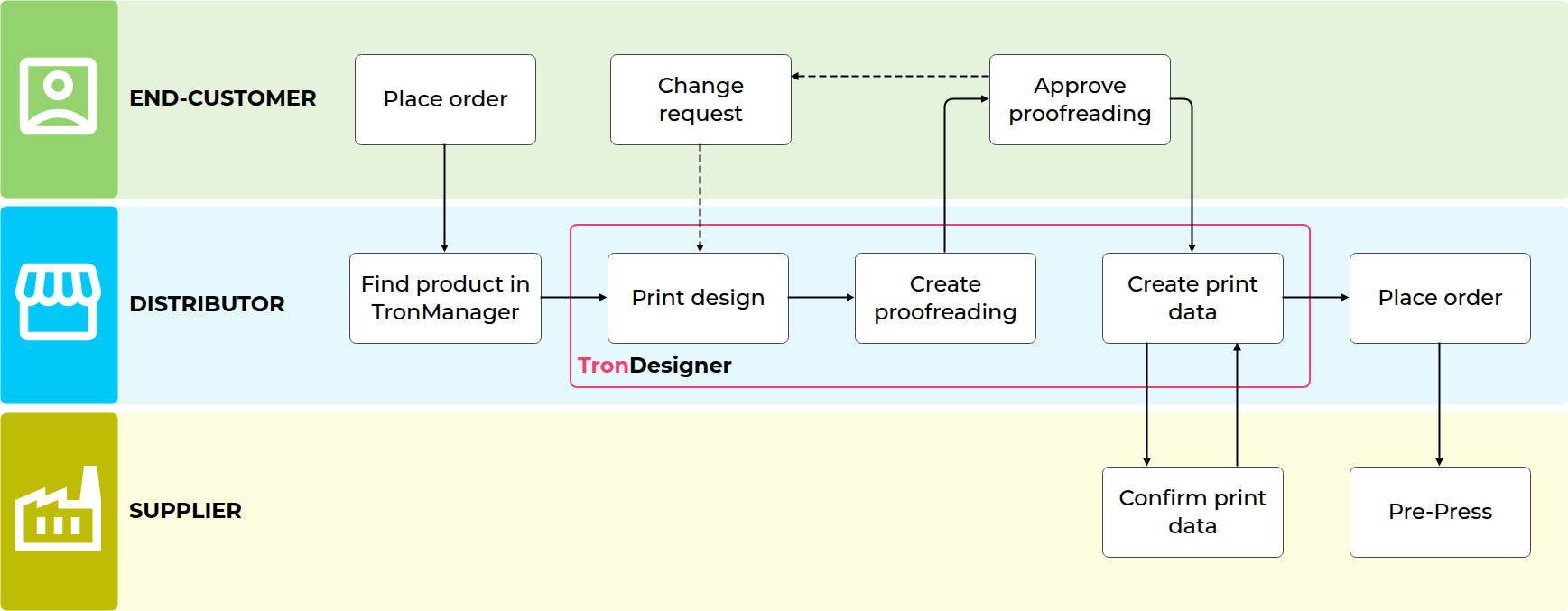
Typical workflows:
“I am a distributor”:
E: In My TronShop
Intended for TronShop users who want to offer instant design and proofing capabilities directly within their webshop flow.
This scenario is an optional add-on to TronShop (visit TronShop web).
Scenario specifics:
Access: Integrated as a native feature; customers access the Editor directly during the shop's checkout or product selection process.
Usage: Designed for external customers to create, customize, and approve designs as part of their shopping journey.
Technical Effort: Zero development required; can be activated instantly with a valid license.
Data Exchange: Fully automated and native; handles all design data and order syncing within the TronShop environment.
Linking: Designs are automatically linked to TronShop orders.
Coming soon: Full integration with current TronLogo and extended workflows.
Typical workflows:
“I am a distributor”: